Setting your display preferences
This topic explains how to set your display preferences via the Settings screen. These settings are used each time you log in and open the Map screens, however you can also edit most of these settings directly from the map screens. The settings on these screens below are coupled with those on the map screens, which means if you change them in one location they also change in the other.
How to set your display settings

-
At the top-right of the Home screen, tap
 .
.The Settings screen opens. You can now tap:
-
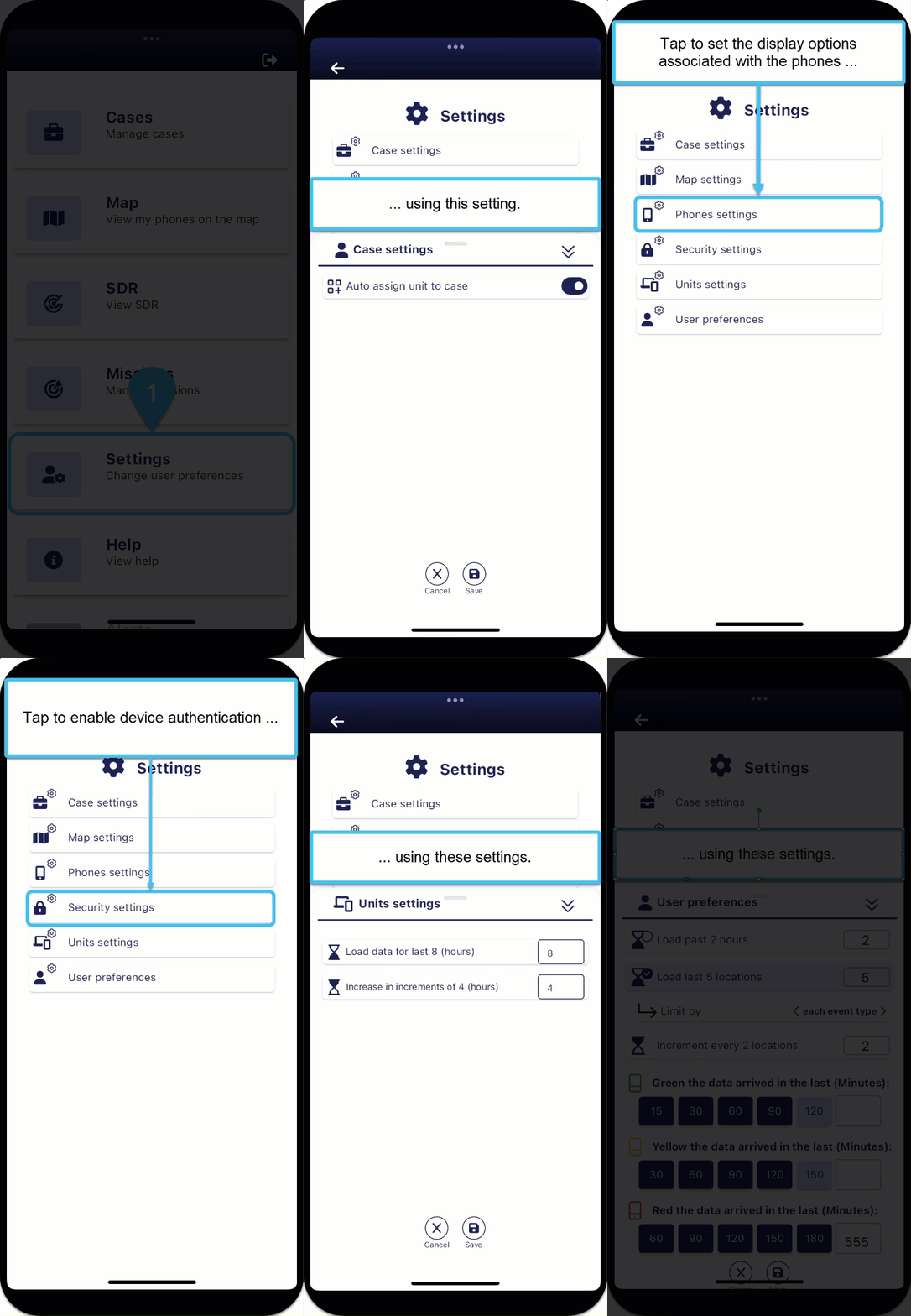
Case settings, to allows you to automatically assign your unit to any case that you open on the Sentinel maps.
-
Map settings, to set how sectors are displayed, including their beamwidth, radius and whether they are open or closed. It also allows you to set whether the GPS ping and alert buffers are displayed and the size of the map icons.
-
Phone settings, to set display options associated with the phones, this includes: whether the phone is displayed by default using the phone number, target name or target alias, whether only phones with events are displayed, and whether only phones you have marked as favorites are displayed.
-
Security settings, to enable or disable device authentication. Device authentication allows you to log in using facial or fingerprint recognition.
-
Units settings, to set the quantity of breadcrumb trail data displayed for field units that are sharing their location.
-
User preferences, to set the default quantity of data displayed and the timing color codes.
-
 Set the amount of data loaded and the timing color codes
For an overview of these settings refer to the User preferences panel.
-
At the top-right of the Home screen tap
.The Settings screen opens.
-
Tap User preferences.
The User preferences panel opens.
-
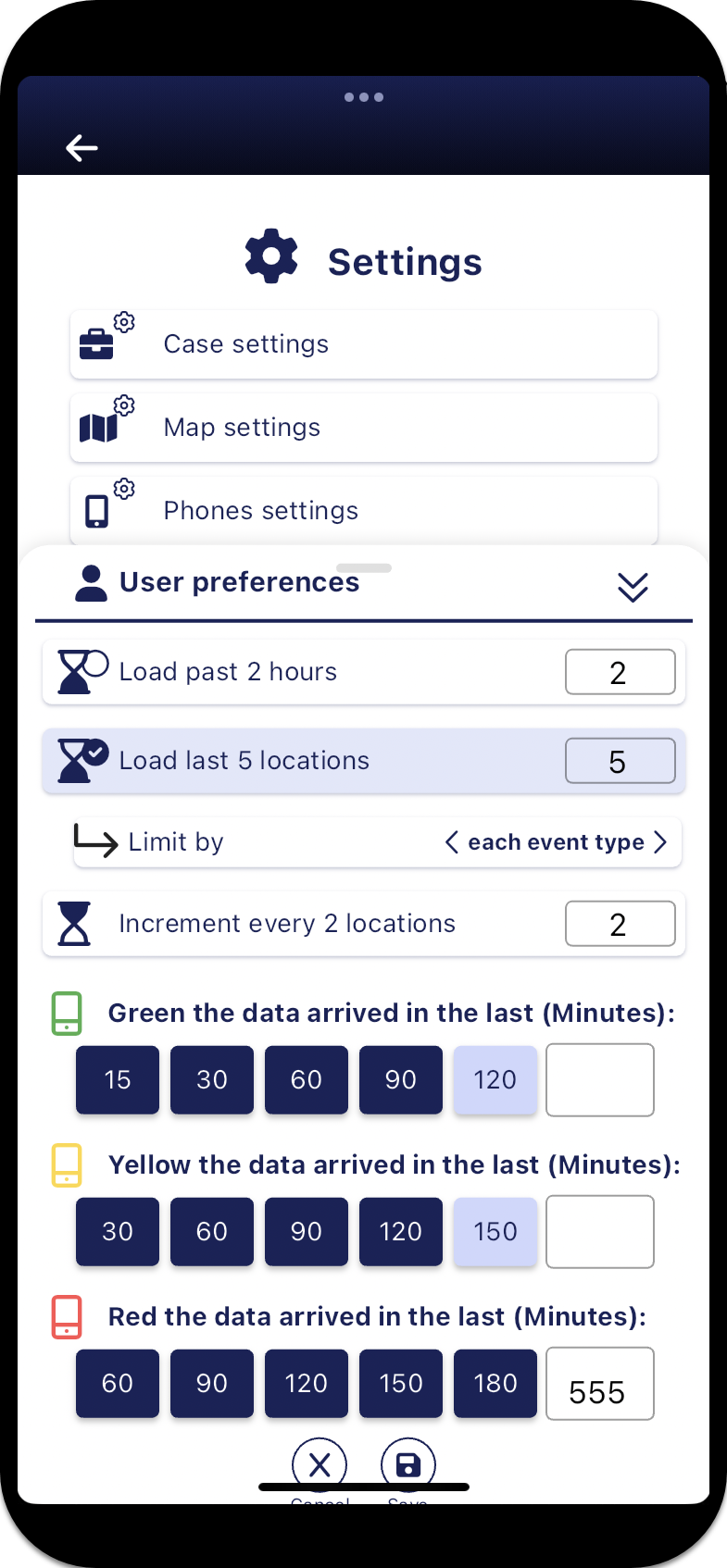
Tap to select either Load past x hours if you want the amount of past data displayed on the Sentinel maps to be based on the number of hours that you enter, or select Load last x locations if you want the amount of past data displayed on the map to be based on the number of past locations that you enter, then enter the number of hours or number of locations respectively.
If you select Load last x locations then:
-
In Limit by, select either any event type or each event type. For example, if you selected to load the last two locations of any event type, then you could only have a maximum of two locations displayed on the Sentinel maps, however if you selected each event type then you could have a maximum of six locations, two Smart Track alerts, two GPS pings and two PRTT events.
-
-
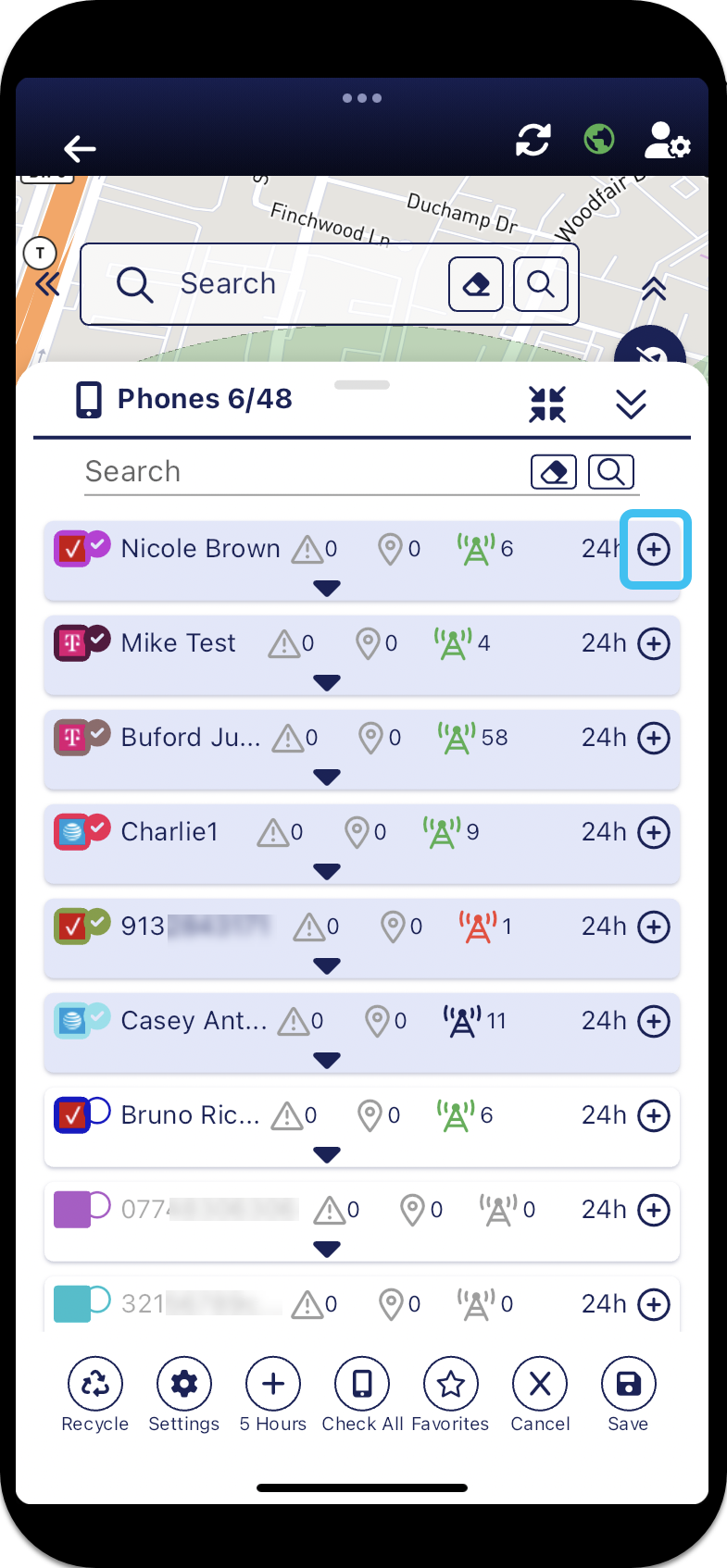
In Increment every x hours or Increment every x locations enter the increment value you want used when you tap
 on the Phones panel.
 This allows you to add more data to the map as detailed in Add more data or remove data from the map screens.
In the following example this setting is set to 2 hours and when
is tapped an additional 2 hours are added to the existing 5 hours meaning 7 hours of data is then displayed.
-
on the Alerts panel and the Alert summary panel.
-
In Green/Yellow/Red the data arrived in the last (Minutes) select the number of minutes for each range. You can choose between predefined minutes for each range, or you can enter a value of your own. The following graphic shows that data that occurred within the last 120 minutes is displayed in green, within the last 120 to 150 minutes is displayed in yellow, and within the last 150 to 180 minutes is displayed in red.

 Set whether the phone is displayed using the phone number, target name or target alias
-
At the top-right of the Home screen tap
.The Settings screen opens.
-
Tap Phones settings.
The Phones settings panel opens.
- Tap which naming method you want used to display the phones on the map screens' Phones panel.
Set whether only phones with events or only favorite phones are displayed
-
At the top-right of the Home screen tap
.The Settings screen opens.
-
Tap Phones settings.
The Phones settings panel opens.
- In Display only phones with events select whether to only display phones, on the map screens' Phones panel, that have events data.
- In Display only favorites select whether to only display the phones, on the map screens' Phones panel, that you have marked as favorites.
Set the amount of breadcrumb trail data displayed for field units
-
At the top-right of the Home screen tap
.The Settings screen opens.
-
Tap Units settings.
The Units settings panel opens.
- In Load data for last x hours enter the number of hours of unit data you want displayed by default.
- In Increase in increments of x (hours) enter the increment value you want used when you tap on the Units panel.
Set how sectors, icon size, GPS ping and alert buffers are displayed
??? teamrev26.1 section title changed
-
At the top-right of the Home screen tap
.The Settings screen opens.
-
Tap Map settings.
The Map settings panel opens.
-
Select the settings you want to use.
For an overview of these settings refer to the Map settings panel.
Set device security authentication
-
At the top-right of the Home screen tap
.The Settings screen opens.
-
Tap Security settings.
The Security settings panel opens.
-
In Request device authentication select whether or not you want to log in to your device using facial or fingerprint recognition.