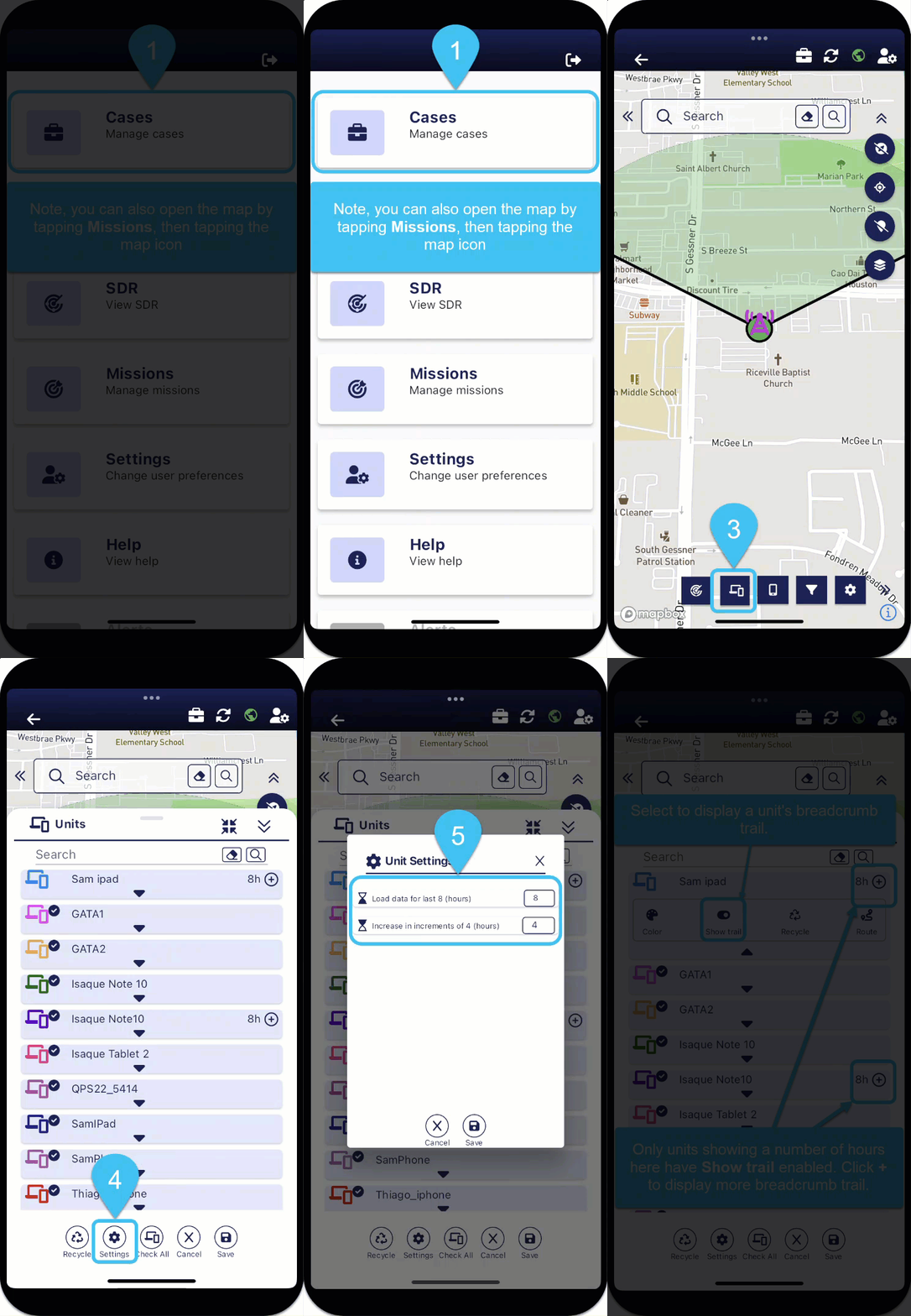
Set the amount of breadcrumb trail data displayed for field units while using the map

-
On the bottom of the map screens, tap
 . The Units panel opens.
 -
On the bottom of the panel, tap
 . The Unit settings panel opens.
 - In Load data for last x hours enter the number of hours of data you want displayed.
- In Increase in increments of x (hours) enter the increment value you want used when you tap
 on the Units panel.
 - Tap
 . The Unit settings panel closes.
 -
Only those units displaying a number of hours and
, have their trails displayed. 
To display the trail of other units tap
 , then tap Show trail so that the icon displays as
  .
.NOTE: When investigating a case, by default all the units trails are hidden, therefore if you want to view any you must select to show their trails. To maximize the map screens' performance it is recommended that you only view the trails of those units that you need to.
