User preferences panel
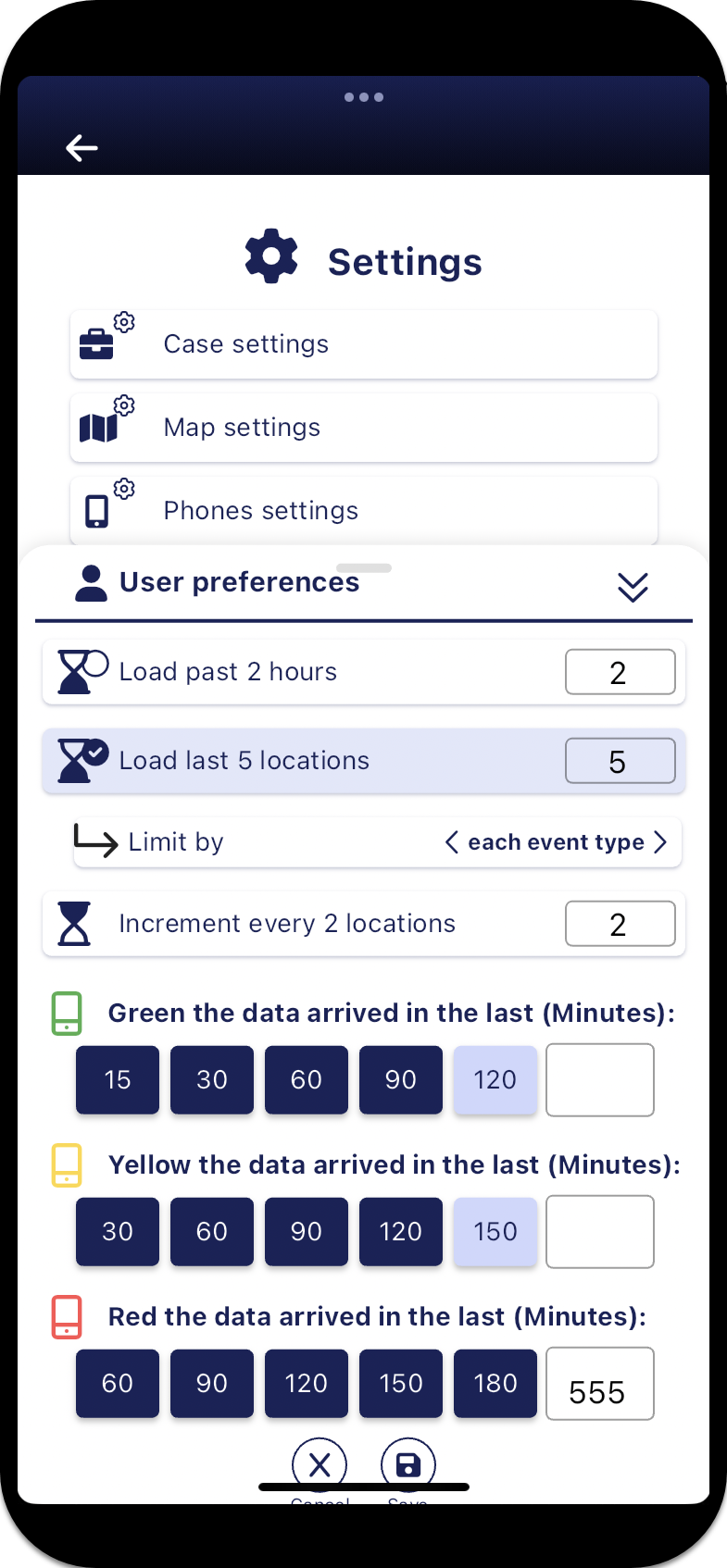
The User preferences panel allows you to set:
-
the amount of past data displayed, based on either the last number of hours or the last number of known locations.
If you choose to load the map screens based on the last number of locations then you can also select whether that is based on all event types or each event type. For example, if you selected to load the last two locations of any event type, then you could only have a maximum of two locations displayed on the Sentinel maps, however if you selected each event type then you could have a maximum of six locations, two Smart Track alerts, two GPS pings and two PRTT events.
-
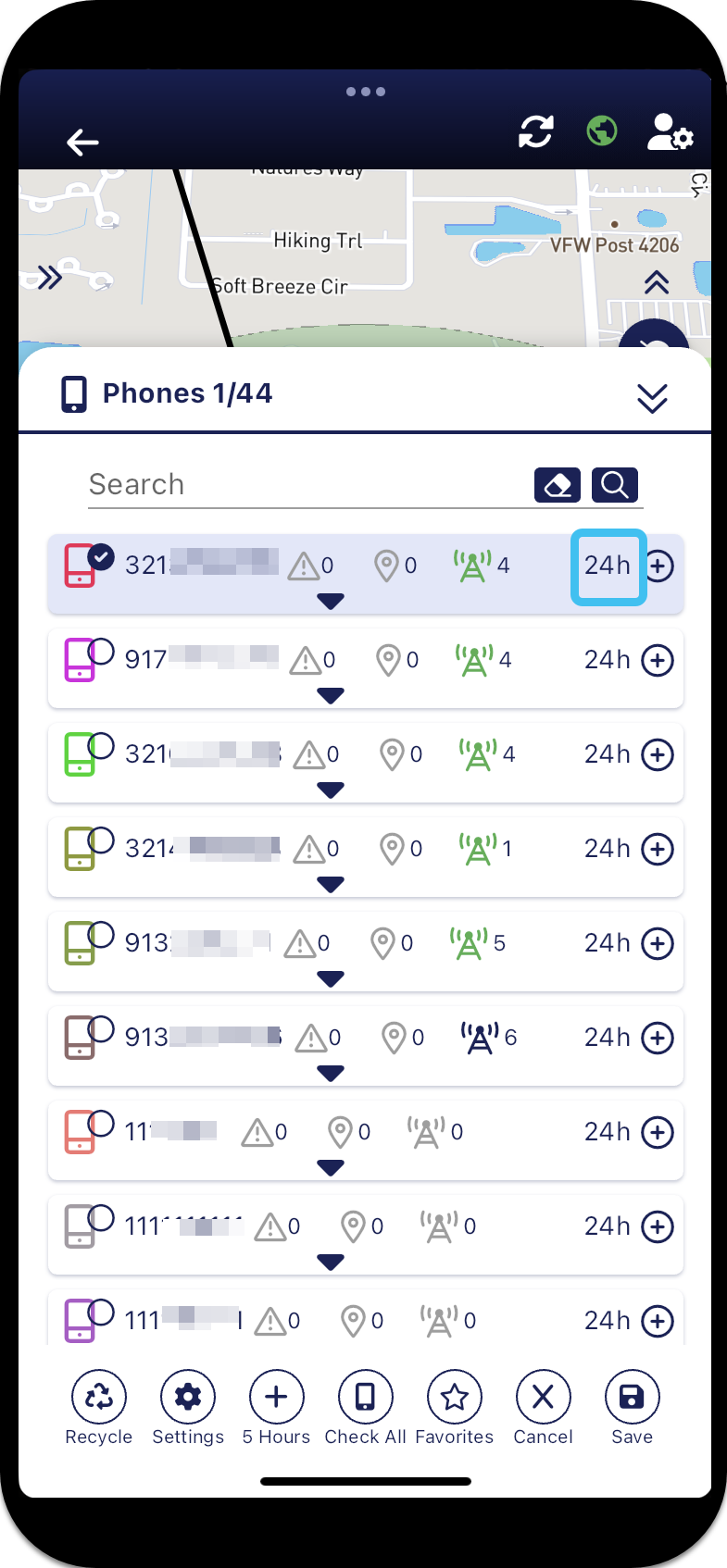
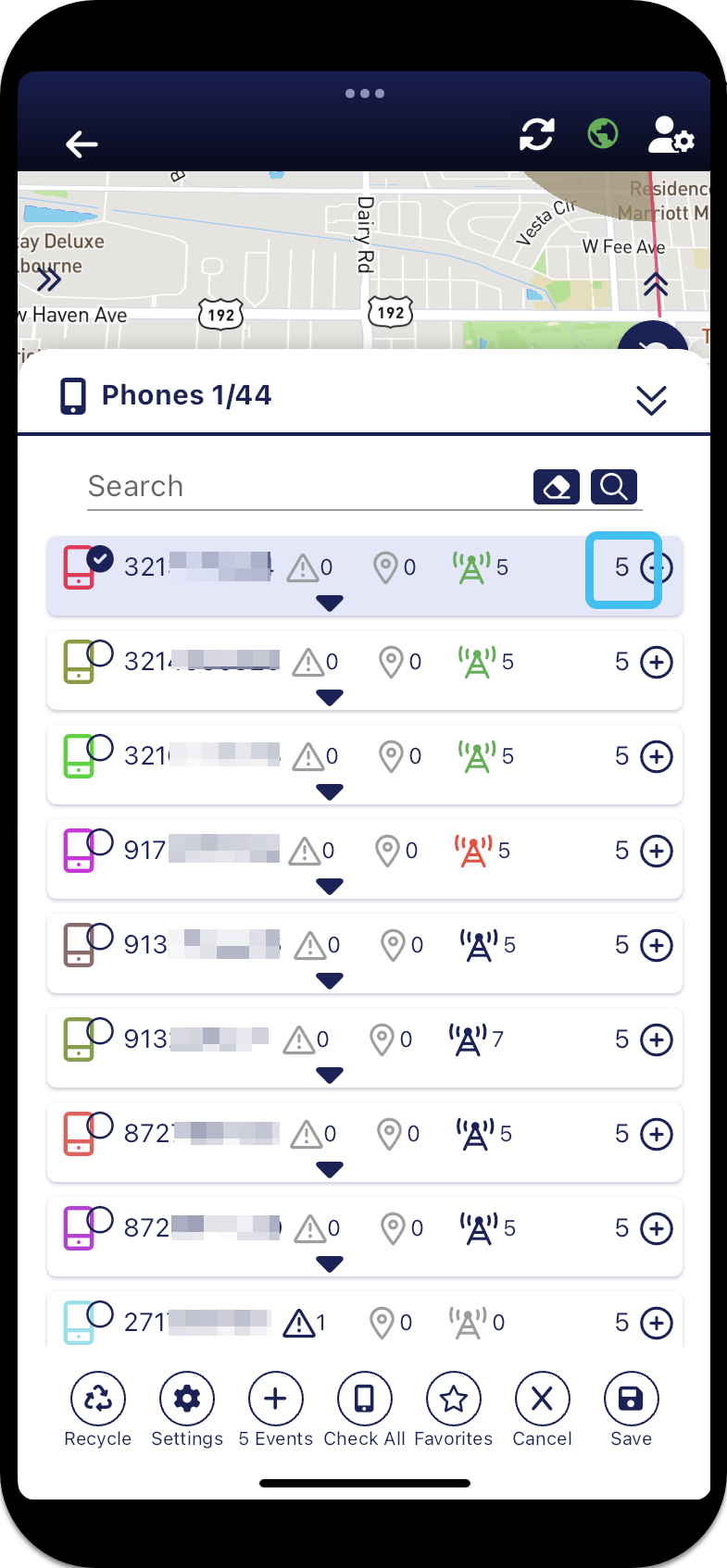
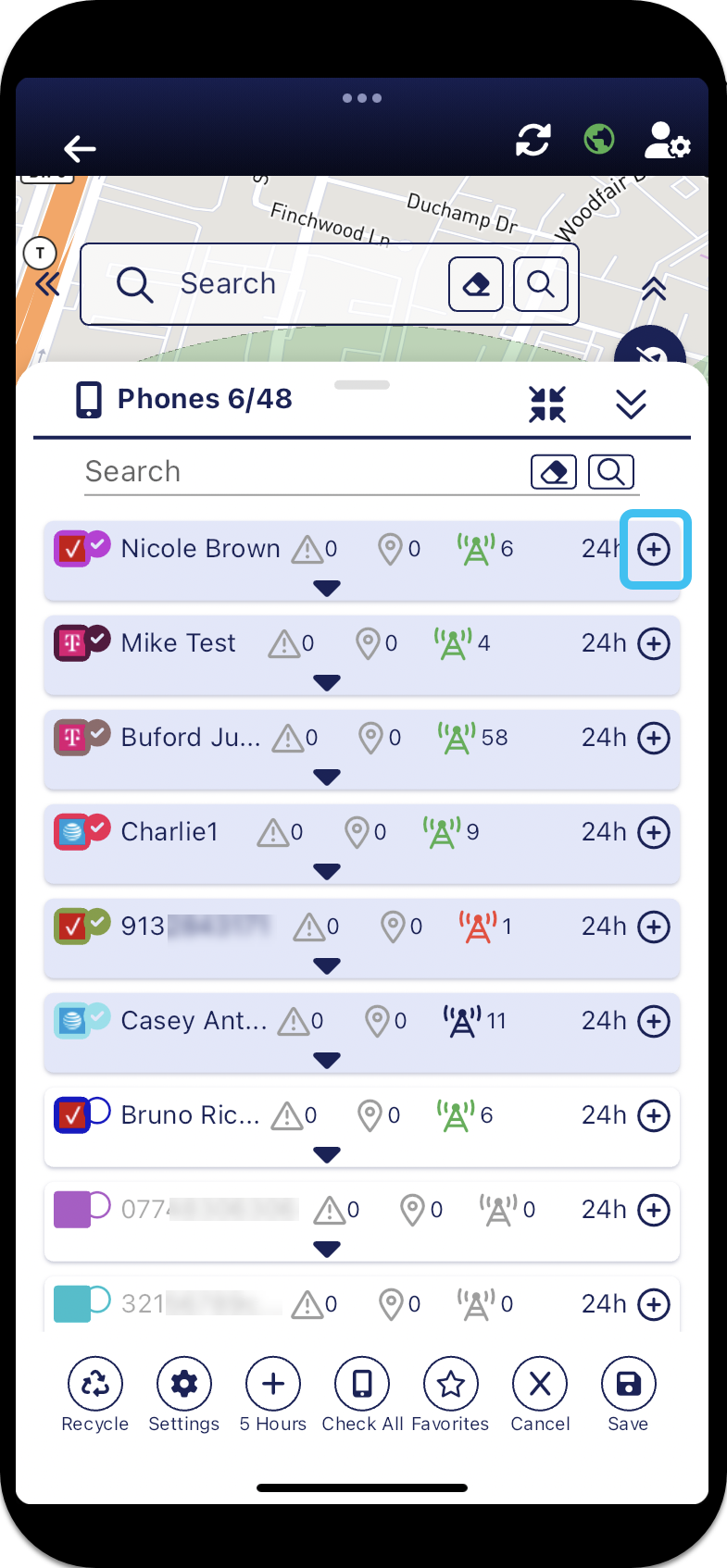
how many hours or locations are added when you tap
 on the Phones panel.
 -
how many additional alerts are added when you tap
on the Alerts panel and the Alert summary panel. -
what color the data is displayed in so that you can quickly determine the age of the data. These colors are used on the Map screens and the Phones panel. You can select three different time ranges, with green being the most recent, then yellow, followed by red being the oldest. You can choose between predefined minutes for each range, or you can enter a value of your own. The following graphic shows that data that occurred within the last 120 minutes is displayed in green, within the last 120 to 150 minutes is displayed in yellow, and within the last 150 to 180 minutes is displayed in red.
-
from the Home screen: Set the amount of data loaded and the timing color codes
-
from the map screens: Set the amount of data loaded and the timing color codes while using the map
 Settings
Load past x hours
Settings
Load past x hours
Select if you want the amount of past data displayed on the Sentinel maps to be based on the number of hours that you enter. Alternatively you can base it on the last number of locations using Load last x locations.
Load last x locations
Select if you want the amount of past data displayed on the map to be based on the number of past locations that you enter. Alternatively you can base it on the last number of hours using Load past x hours.
Limit by
This setting is only applicable when Load last x locations is selected.
Select whether the last number of locations is based on all event types or each event type. For example, if you selected to load the last two locations of any event type, then you could only have a maximum of two locations displayed on the Sentinel maps, however if you selected each event type then you could have a maximum of six locations, two Smart Track alerts, two GPS pings and two PRTT events.
Increment every x hours
This setting is only applicable when Load past x hours is selected.
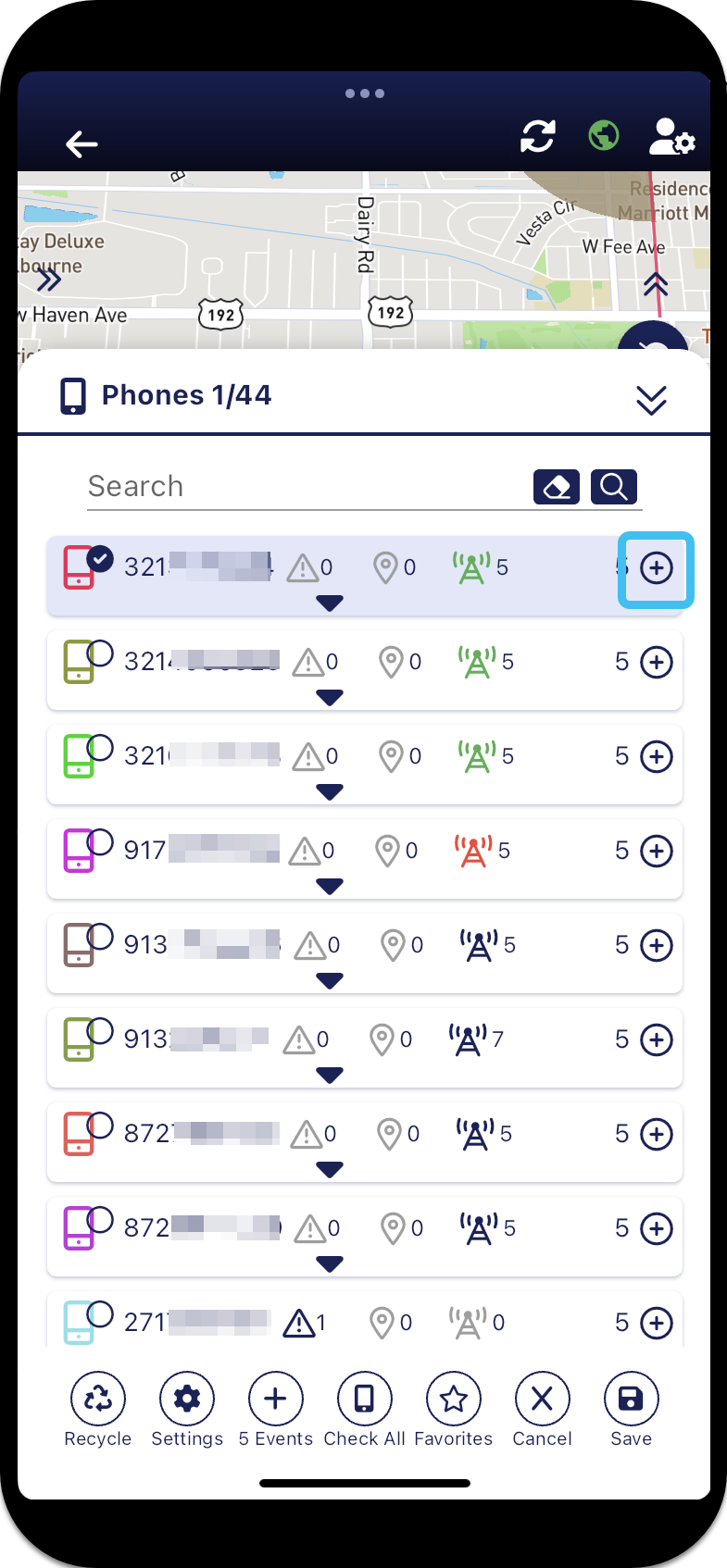
Select the number of hours incremented when you tap on the Phones panel for either an individual phone or all the selected phones. In the following example this setting is set to 2 hours and when is tapped an additional 2 hours are added to the existing 5 hours meaning 7 hours of data is then displayed.
Increment every x locations
This setting is only applicable when Load last x locations is selected.
Select the number of locations incremented when you tap on the Phones panel for either an individual phone or all the selected phones. In the following example this setting is set to 5 locations and when is tapped an additional 5 locations are added to the existing 5 locations meaning 10 locations are then displayed.
Load next x alerts
??? teamrev26.1 new>
Select the number of alerts incremented when you tap on the Alerts panel and the Alert summary panel.