Map settings panel
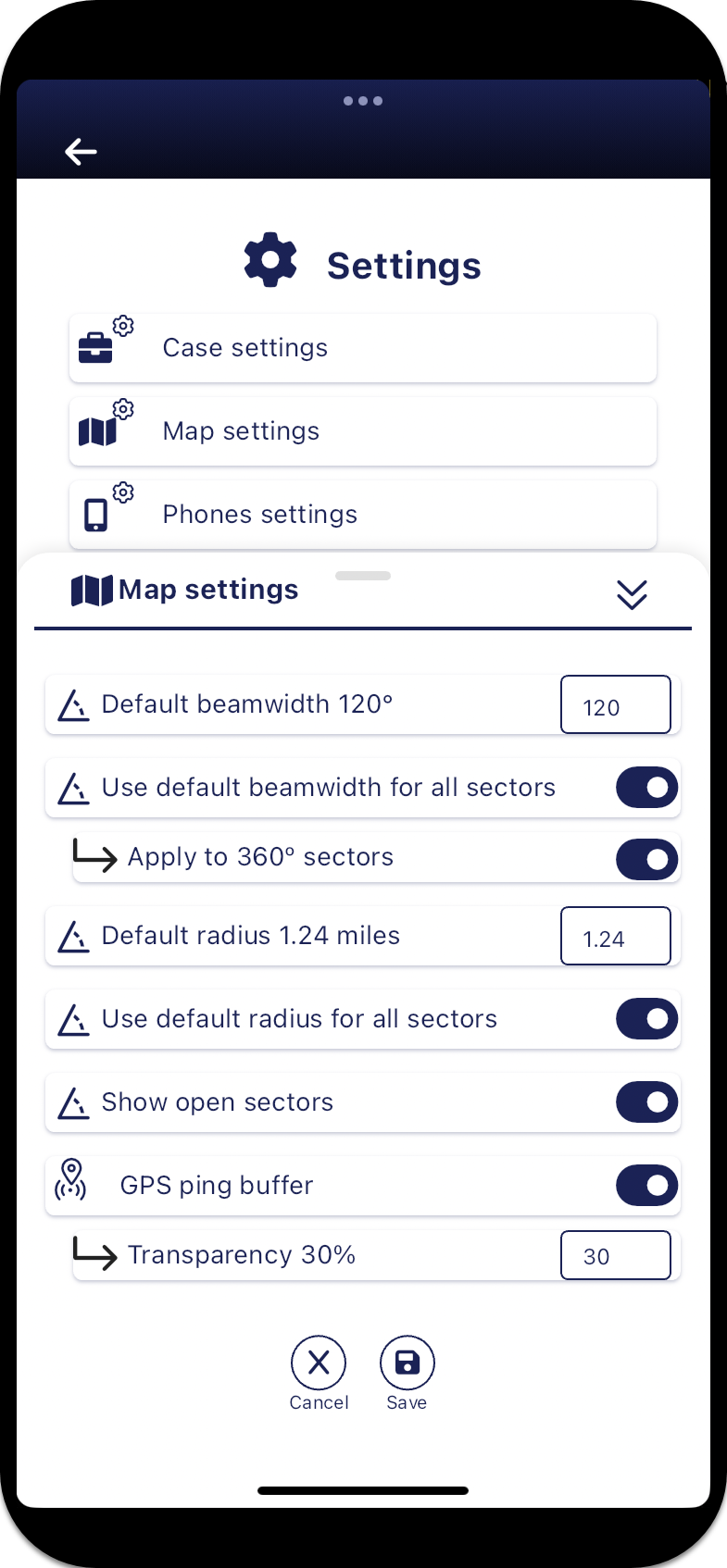
The Map settings panel allows you to configure how you want the sectors displayed on the map, the icon size, and whether or not you want to display the buffer area around GPS pings and alerts.
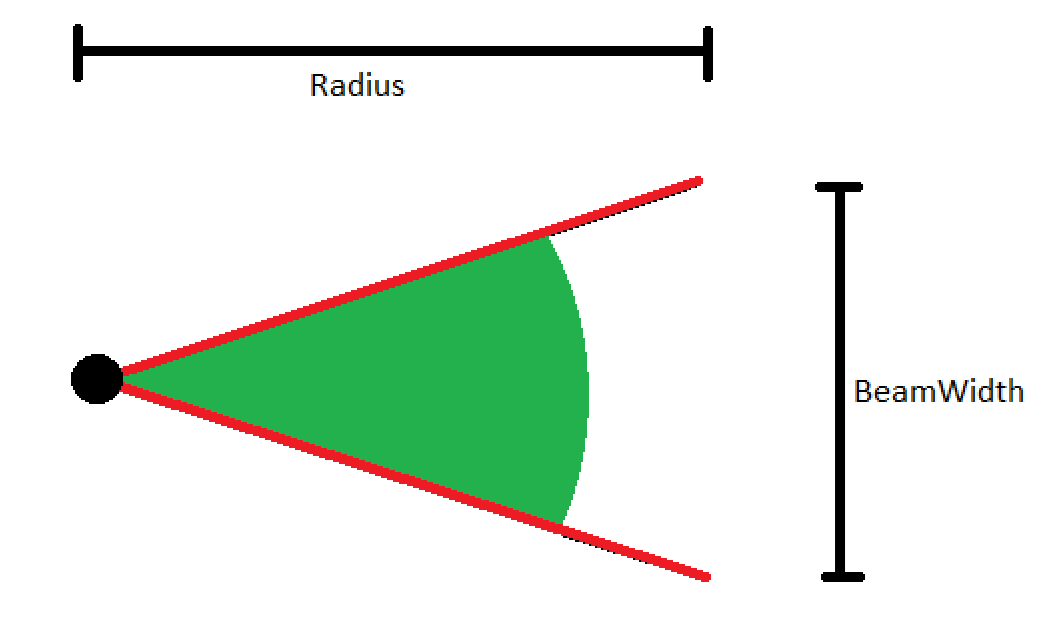
The definition of the radius and beamwidth is shown in the following graphic:
-
from the Home screen: Set how sectors, icon size, GPS ping and alert buffers are displayed
-
from the map screens: Set the amount of data loaded and the timing color codes while using the map
 Settings
Default beamwidth
Settings
Default beamwidth
Select the sector beamwidth you want used as the default each time a sector is displayed on the map. The default value is 120 degrees. This value is only used when Use default beamwidth for all sectors is selected, or if no beamwidth value is available in the cell tower database.
Use default beamwidth for all sectors
Select if you want to use the beamwidth entered in Default beamwidth.
If this is not selected then the beamwidth value set in the cell tower database is used for each sector, however if the cell tower database has no beamwidth then the Default beamwidth is used.
Apply to 3600 sectors
To display this setting tap Use default beamwidth for all sectors. Select this setting to also apply the value set in Default beamwidth to 3600 sectors.
Default radius
Select the sector radius you want used as the default each time a sector is displayed on the map. The default value is 1.24 miles.
Use default radius for all sectors
Select if you want to use the radius entered in Default radius.
If this is not selected then the radius value set in the cell tower database is used for each sector, however if the cell tower database has no radius then the Default radius is used.
NOTE: Typically the radius value is not available in the cell tower database or from the provider therefore it is most common that the value set in Default radius is used.
Show open sectors
Select if you want to display the sectors as open sectors where they are only 20% partially filled. You may want to do this so that you are not showing an exact theoretical cell boundary.
Icon size on map
??? teamrev26.1 new >
Select the size you want the icons to display on the map such as the tower, Smart Track and GPS ping markers.
GPS ping buffer
Tap to either display or hide the GPS ping buffer from displaying on the map.
Transparency (for the GPS Ping buffer)
To display this setting tap GPS ping buffer. Select a value to change the transparency of the GPS ping buffer. Using a lighter transparency allows you to view the map details more easily.
Alert buffer
??? teamrev26.1 new >
Tap to either display or hide the alert buffer from displaying on the map.
Transparency (for the Alert buffer)
??? teamrev26.1 new >
To display this setting tap Alert buffer. Select a value to change the transparency of the alert buffer. Using a lighter transparency allows you to view the map details more easily.