Settings screen
The Settings screen provides access, in one location, to five panels that allow you to set your map and security settings. Note, you can also change most of these settings when you are using the map screens.
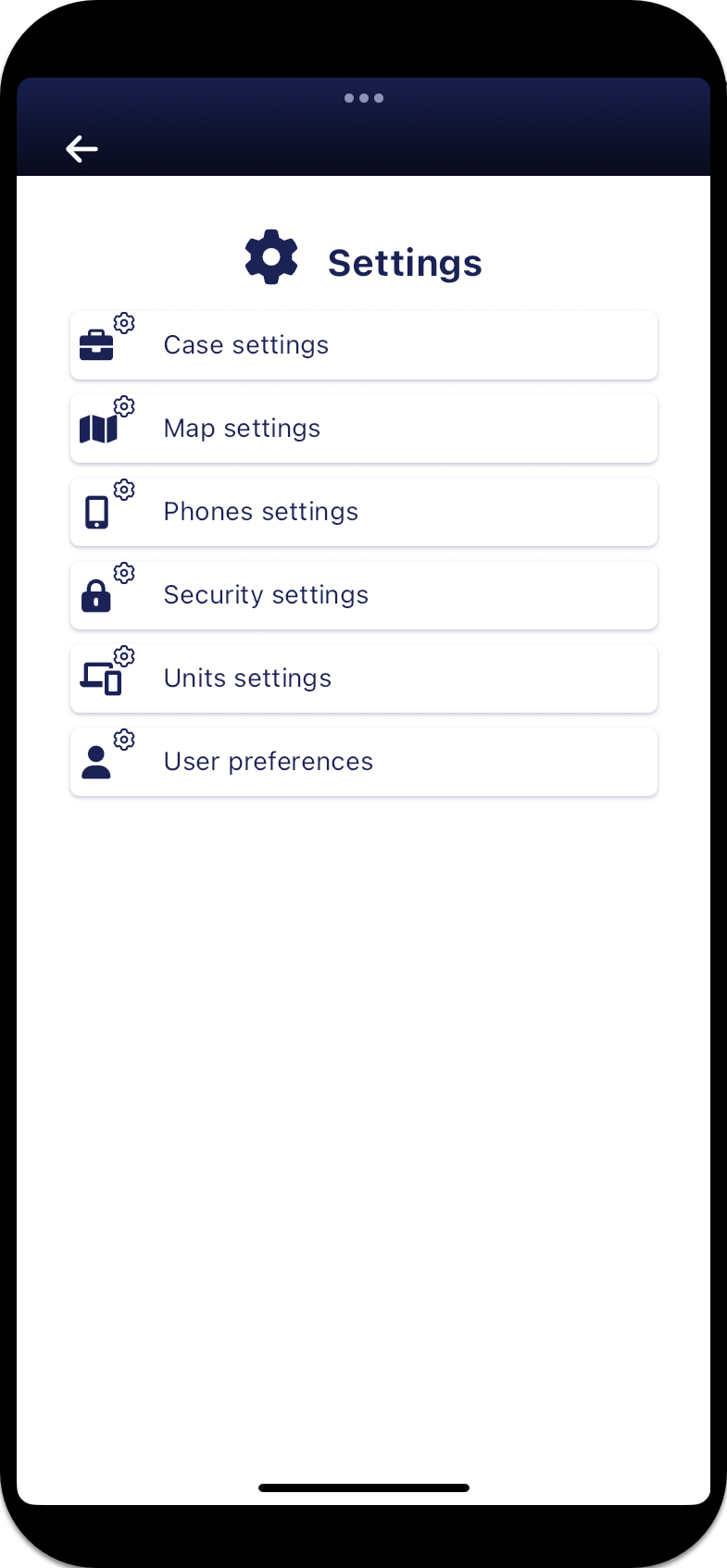
Tap:
-
Case settings to open the Case settings panel that allows you to automatically assign your unit to any case that you open on the map.
-
Map settings to open the Map settings panel that allows you to configure how you want the sectors displayed on the map, the icon size, and whether or not you want to display the buffer area around GPS pings and alerts.
 .
. -
Phones settings to open the Phones settings panel that allows you to set display options associated with the phones, this includes: whether the phone is displayed by default using the phone number, target name or target alias, whether only phones with events are displayed, and whether only phones you have marked as favorites are displayed. These settings are also available and coupled with the same settings on the map screens, opened from the Phones panel by tapping
 .
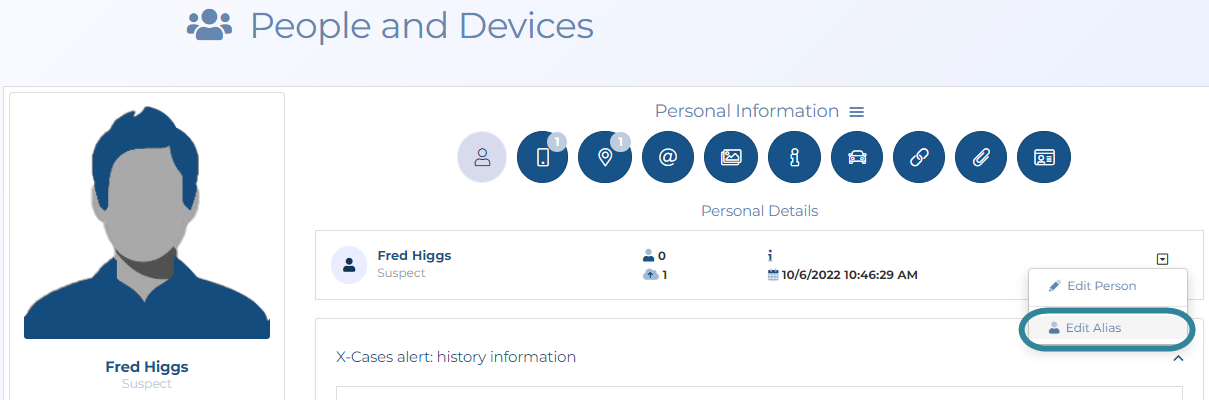
.For a target alias name to display, there must be an alias name entered for the target on OSS-ESPA's Personal details panel, otherwise No Alias is displayed.
When you are using the map screens, in addition to being able to change the phone number, target name or target alias for all phones you can also change it for an individual phone.
-
Security settings to open the Security settings panel that allows you to enable or disable device authentication.
-
Units settings to open the Units settings panel that allows you to set the amount of field unit data that is displayed and by how much it is added when you tap
 on the Units panel.
 -
User preferences to open the User preferences panel which allows you to select the amount of past data displayed, based on either the last number of hours or the last number of known locations, and what color the data is displayed in so that you can quickly determine the age of the data. These settings are also available and coupled with the same settings on the map screens, opened by tapping
 .
.
If you require step-by-step procedures on using this screen refer to Setting your display preferences.