Target development screen
This topic provides an overview of the Target development screen and all the settings and buttons on it. However if you require step-by-step procedures on using target development refer to Using Target Development to identify IMSIs.
 Overview
Target development allows you, with the assistance of a Managed Access System (MAS), to identify IMSIs that are being used at a location. The data is collected by the MAS and is then automatically analyzed and organized by Target development to give you a clear picture of which IMSIs were in use. Target development can help you in two scenarios:
-
Identify target at same location allows you to identify IMSIs at one specific location. This is useful if you are trying to identify the illegal use of IMSIs at a specific location such as a prison. The whitelist allows you to manage IMSIs that are of no interest to your investigation, such as prison employees and your own IMSI.
-
Identify target in multiple locations allows you to identify which IMSIs were at multiple locations that the target IMSI was at. These may be additional devices that a target owns or phones of accomplices they are meeting with. Once identified you can investigate whether or not these would be useful to monitor.
If a SIM card is moved between devices Target development also displays the results of which devices were being used by a particular subscriber, and which subscribers were using a particular device.
To open the Target development screen, on the main menu click Other Links then Target development.
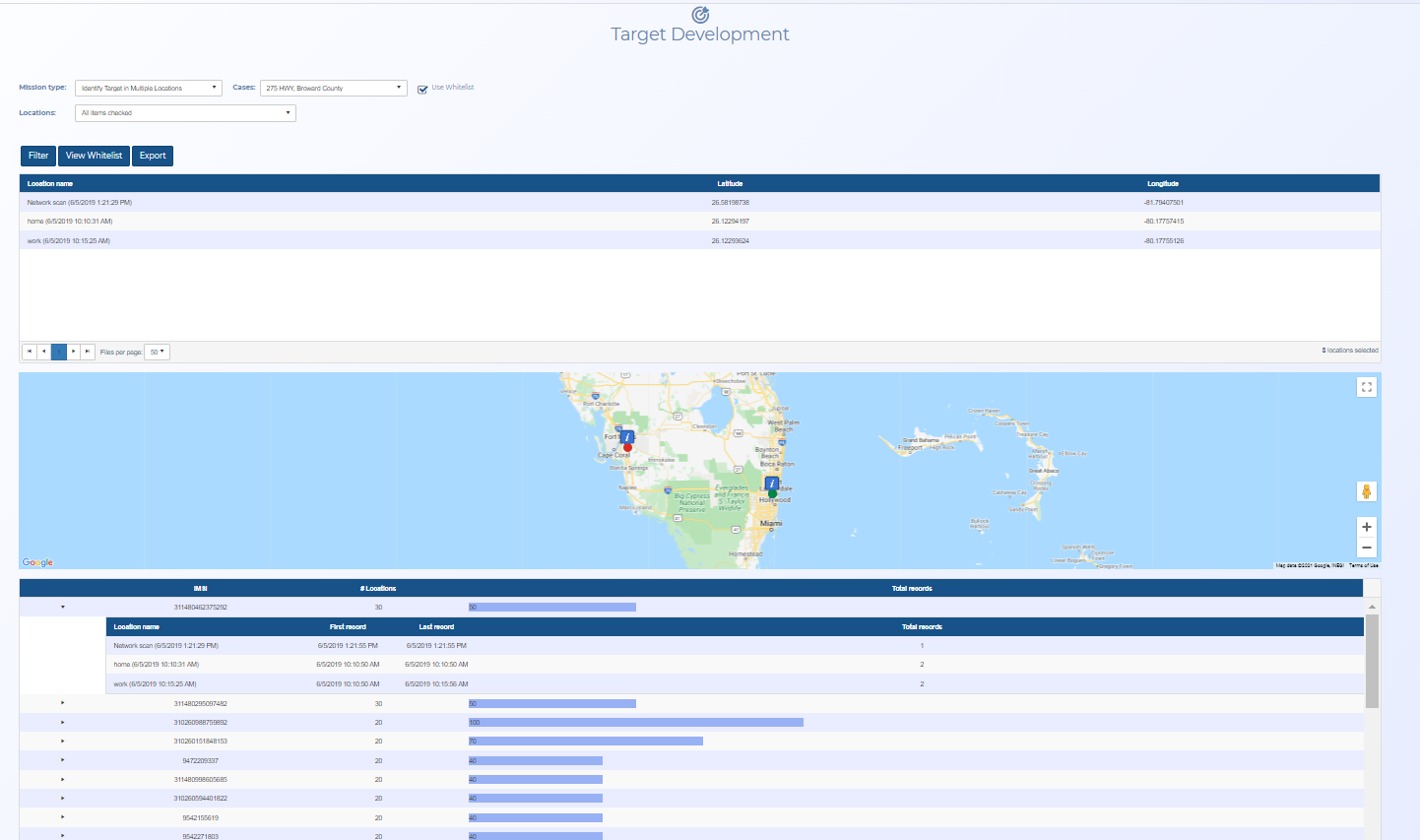
Settings and buttons
Mission type
Select what scenario you want to investigate, either:
-
Identify target at same location allows you to identify IMSIs at one specific location. This is useful if you are trying to identify the illegal use of IMSIs at a specific location such as a prison. The whitelist allows you to manage IMSIs that are of no interest to your investigation, such as prison employees and your own IMSI.
-
Identify target in multiple locations allows you to identify which IMSIs were at multiple locations that the target IMSI was at. These may be additional devices that a target owns or phones of accomplices they are meeting with. Once identified you can investigate whether or not these would be useful to monitor.
Cases
The cases displayed are those that have been uploaded from your MAS. Select which cases you want to analyze.
Use whitelist
This is selected by default. It filters out all the IMSIs that you have added to the whitelist using the Target development whitelist screen.
Hour interval
This setting is only applicable when Mission type is set to Identify target at same location.
This setting along with Show last allows you to define the time period that you want to identify IMSIs over.
Show last
This setting is only applicable when Mission type is set to Identify target at same location.
This setting along with Hour interval allows you to define the time period that you want to identify IMSIs over.
If you select Custom you can define your own dates.
Start date and End date
This setting is only applicable when Mission type is set to Identify target at same location, and Show last is set to Custom.
Select the time period you want to identify IMSIs over.
- To set the Start date either use the date/time picker or select the number of days or hours before the End date then click
 .
. - To set the End date either use the date/time picker or click Now to select the current date.
Locations
This setting is only applicable when Mission type is set to Identify target in multiple locations.
This displays all the locations associated with the cases you selected. Select which ones you want to investigate the IMSIs on.
Filter
Click to filter the IMSIs based on the conditions you have set.
View whitelist
Click to open the Target development whitelist screen which allows you to manage IMSIs that are of no interest to your investigation.
Request IQ packet
Click to request an IQ packet for the current analysis. The Target development IQ packet settings dialog box opens.
For further information refer to Requesting a Target Development IQ Packet.
Location table
This table displays the locations that apply to the filter you applied.
Map
This map displays the locations that apply to the filter you applied.
IMSI table
This table displays the IMSIs and their location that apply to the filter you applied. Click the arrow alongside the IMSI number to display further details.
IMSI vs IMEI
This displays a list of the IMSIs against the IMEIs, only when the IMEI is collected by the scan, and if the SIM card is moved to another device. This helps you easily identify which devices were being used by a particular subscriber.
IMEI vs IMSI
This displays a list of the IMEIs against the IMSIs, only when the IMEI is collected by the scan, and if the SIM card is moved to another device. This helps you easily identify which subscribers were using a particular device.