Target development whitelist screen
This topic provides an overview of the Target development whitelist screen and all the settings and buttons on it. However if you require step-by-step procedures on using target development refer to Using Target Development to identify IMSIs.
 Overview
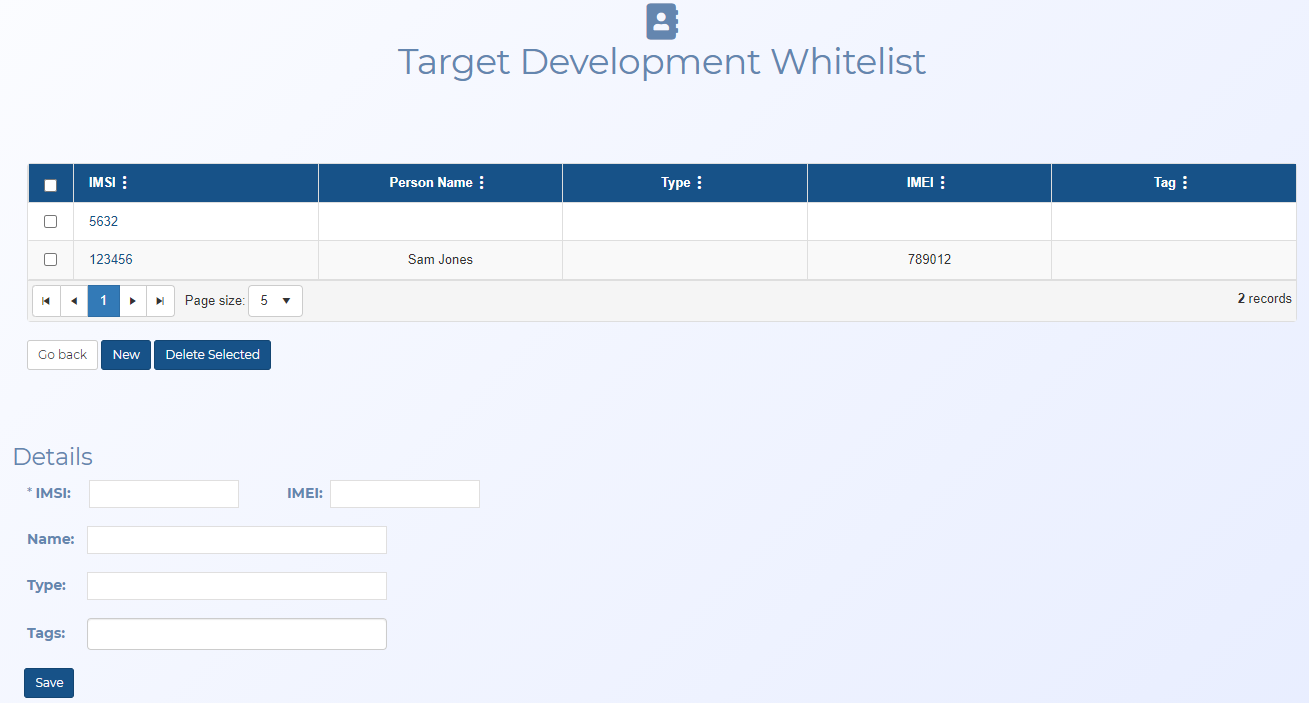
The Target development whitelist screen allows you to manage IMSIs that you do not want to be included in the target development analysis, such as phones possessed by known individuals. Once saved on this screen they will not be displayed on the Target development screen.
Settings and buttons
 Column header menu
Right-click on any column header in the table to display this menu.
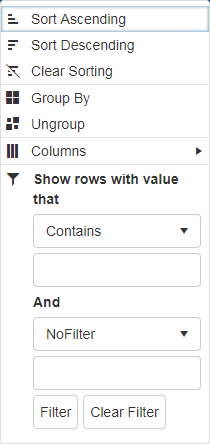
This menu allows you to perform the following:
- Sort ascending: click to sort the column text from A to Z or to sort numbers from smallest to largest.
- Sort descending: click to sort the column text from Z to A or to sort numbers from largest to smallest.
- Clear sorting: click to clear any sorting you have applied using Sort ascending or Sort descending.
- Group by: click to group the cases by the selected column.
- Ungroup: click to ungroup the cases by the selected column.
-
Columns: select to display a list of which columns you can display on this table.
-
 : use to filter further the results that are displayed in the table. You can filter based on the settings in that column and/or values that occur across the case row. When a filter is applied to a column the column header appears in colored italics.
 - Use the check-boxes if any are displayed for your selected column. These allow you to filter based on all the settings that are applicable to that column. For example, the Type column allows you to filter by the different location types that are available in the case.
- Set up to two values that you can filter for using the drop-downs and the data entry field. For example, you could select "Contains" the value "Smith" to search for locations that contain the word "Smith" in the settings displayed in the table.
- Click Filter when you have entered the required filter information.
- Click Clear filter to remove any filter from the column.
Go back
Click to return to the Target development screen.
New
Click to clear any IMSIs that are currently displayed in Details, allowing you to enter the details of a new IMSI.
Delete selected
Click if you want to delete the IMSIs you have the check-box selected for in the table above.
IMSI
Enter the IMSI number that you want to add to the whitelist, such as your own. This prevents the IMSI showing in any of the results on the Target development screen.
IMEI
Enter the IMEI number that you want to add to the whitelist, such as your own. This prevents the IMEI showing in any of the results on the Target development screen.
Name
Enter the name of the person the IMSI is owned by. This helps you to easily identify the IMSI number in the table.
Save
Click to save the IMSI, along with its additional details, as a whitelisted number. The details appear in the whitelist table.