How to log in

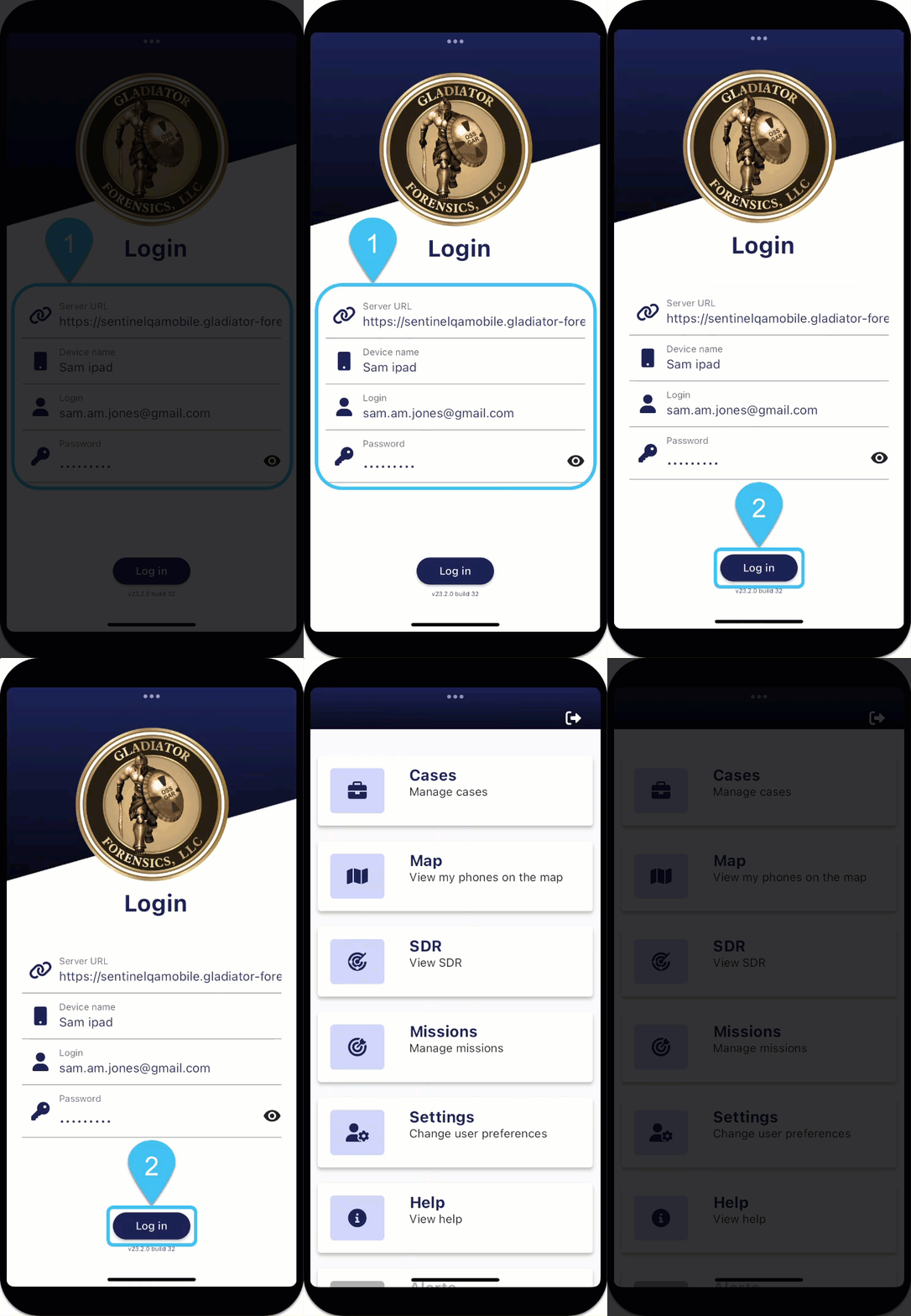
NOTE: If you are a guest your process for logging in is slightly different, for further details refer to If you are a guest on a mission.
-
In Server URL, enter the URL for your G-Scout App.
-
In Device name, enter a name to identify your device, for example "Sam Jones Phone".
-
In Login, enter your user name for your OSS-ESPA account.
-
In Password, enter your user password for your OSS-ESPA account.
-
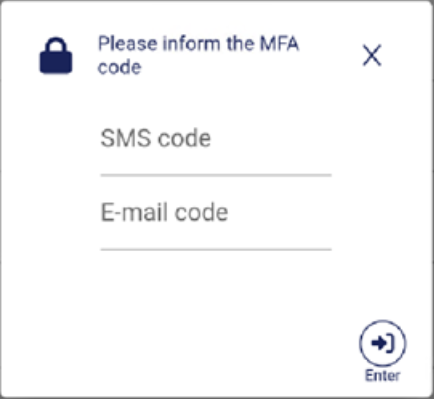
Tap Log in. If your account does not require multi-factor authentication then the Home page is displayed. If your account does require multi-factor authentication then you must enter the additional codes that are requested. Depending on how your administrator has configured the account these codes may be sent to your: email, verified phone number by SMS, or your registered app authenticator. It may be the case that your administrator has configured the account so that at your first log in each day you must enter an additional two codes, and thereafter, if you log back in during that same day then only one additional code is required. The example shown below is requesting you enter an additional two codes, one which is sent to your phone, the other to your email.

 If required, click for further information on verifying your phone number and the app authenticators that are supported
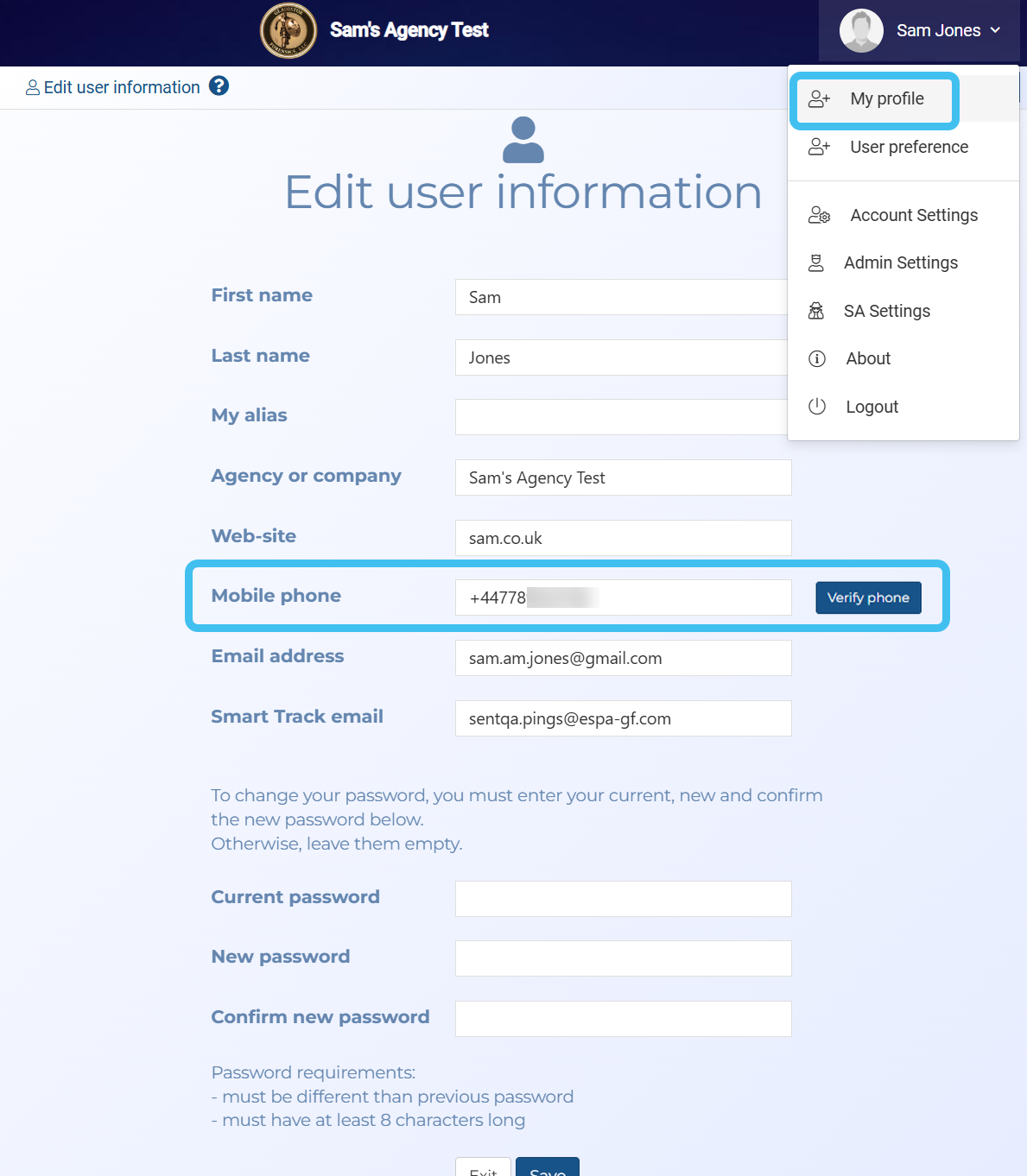
If required you can verify your phone number on your OSS-ESPA account's Edit user information screen as shown below.

For the app authentication options, if you do not have a registered app authenticator then you must first use OSS-ESPA where a QR code is displayed which you must scan using a supported app authenticator.
Both the Google authenticator and the Microsoft authenticator are supported and are available for download at the following locations:
-
Google authenticator:
-
Microsoft authenticator:
-
-
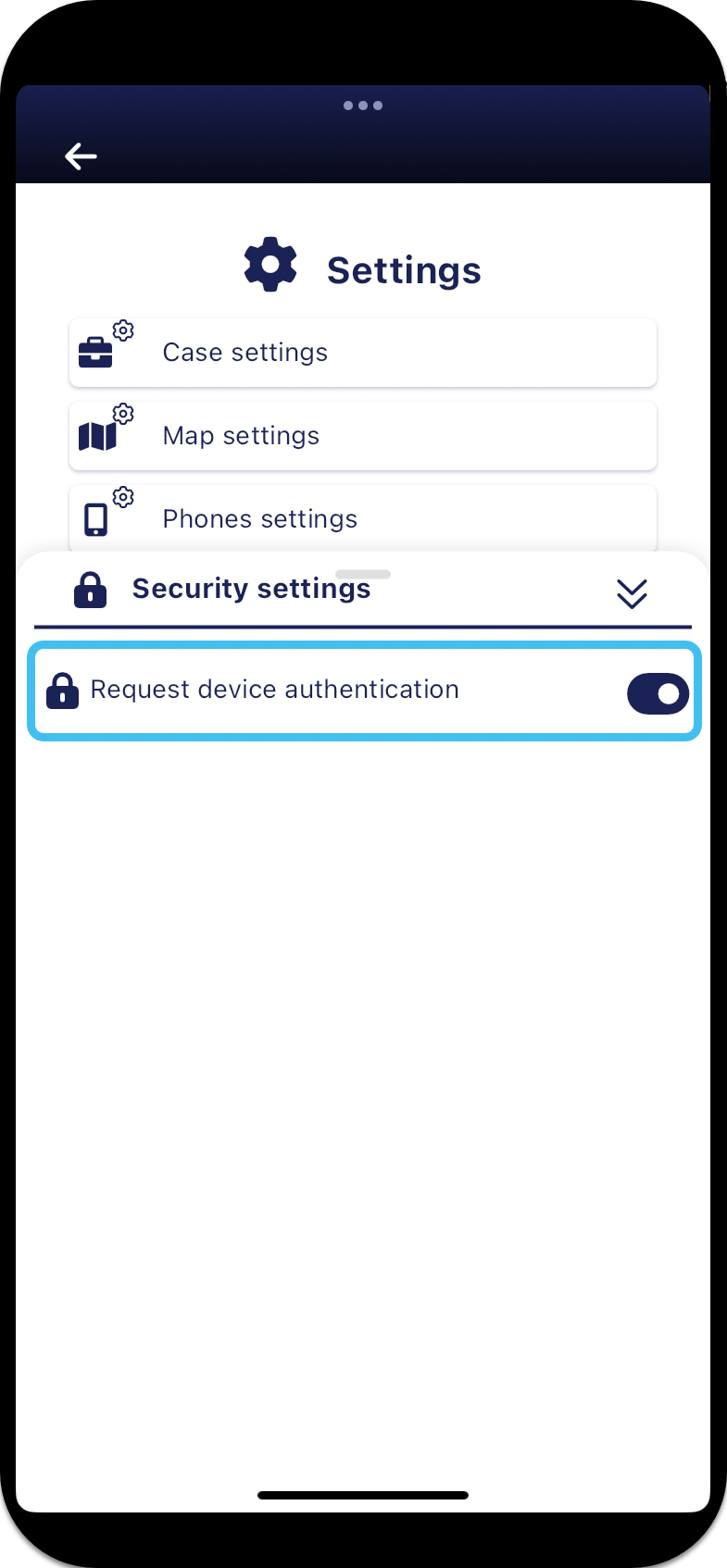
If in the future, you would prefer to use device authentication to enter your password automatically then from the Home screen, tap Settings, tap Security settings and enable Request device authentication.

For further information refer to the Login screen.