How to create a monitoring queue for social media
This topic describes how to create and configure a monitoring queue for the target's social media account. To creating a monitoring queue for their voice data or text, refer to How to create a monitoring queue.
You can either assign individual users to a queue or you can assign monitoring stations to a queue. Assigning monitoring stations simplifies the administrative process of configuring the multiple different users who are monitoring the subject throughout the period of the warrant. You must first add a user account for the station, as you would for a normal user, for example you may want to add one with the first and last names being "Monitoring Station1". For further information refer to Setting up a person or a station for live monitoring.
-
On the main menu click Intercept Center, then click Queue management.
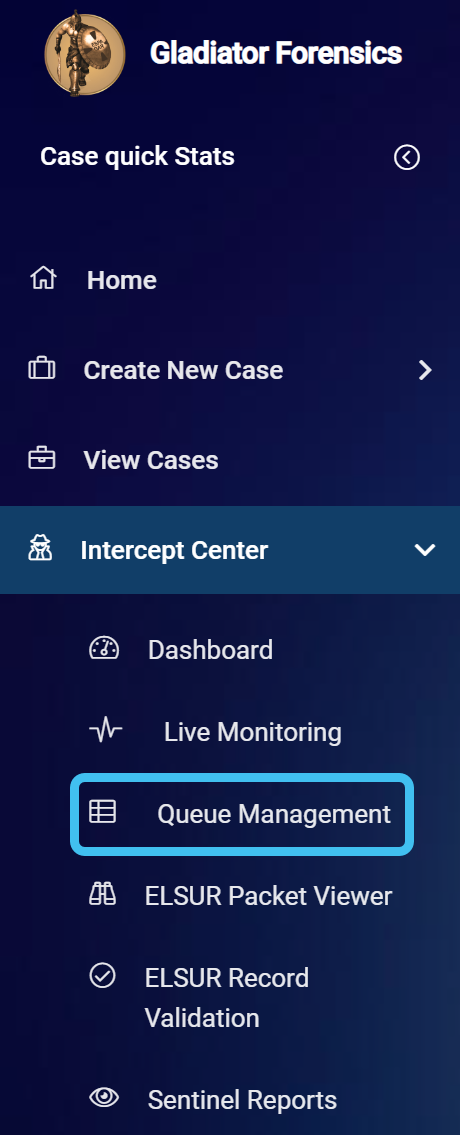
The Queue management screen opens.
-
In Monitoring management click
 .
.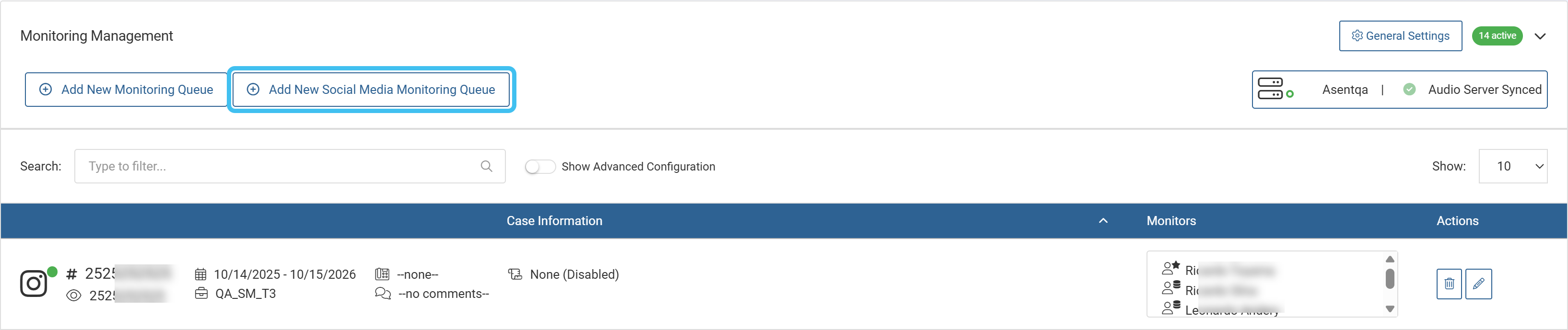
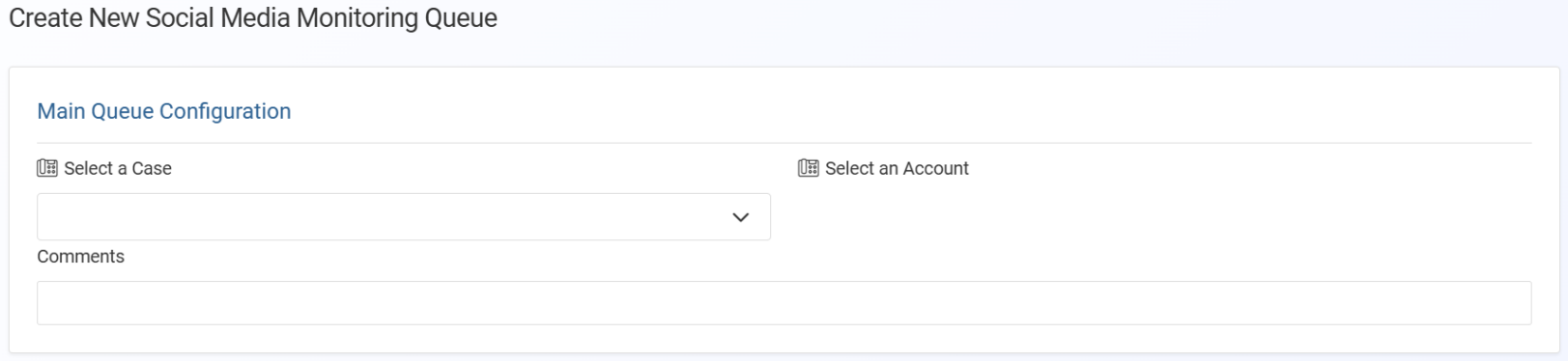
The Create new social media monitoring queue screen opens.

-
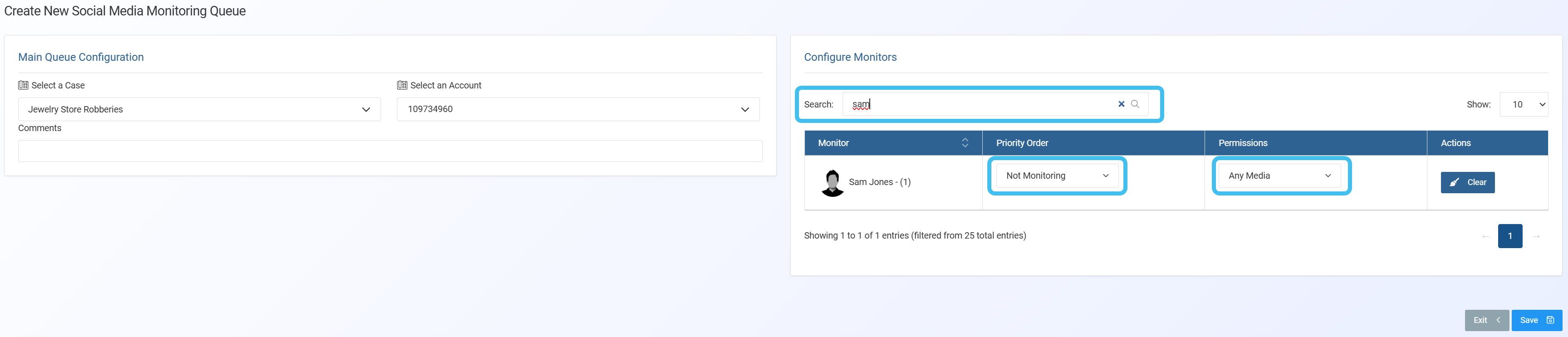
In Main queue configuration:
-
In Select a case, for the case you want to configure the monitors for, enter all or part of the case name then select it from the menu.
-
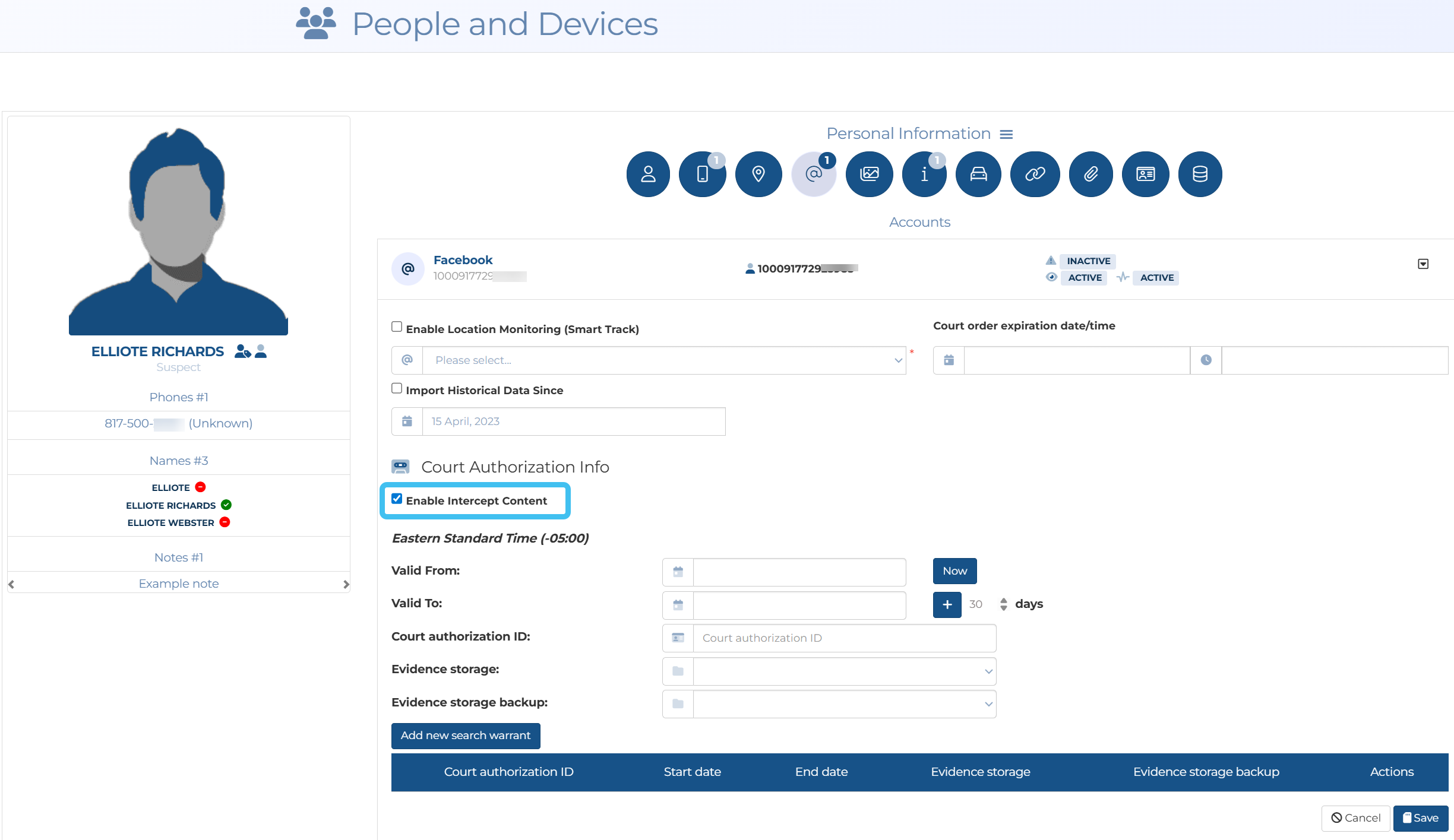
In Select an account, from the menu, select the account you want to configure the monitors for.
NOTE: For the social media account to be available to select, you must select Enable intercept content for the account on the People and devices screen.
-
If required, in Comments enter any text that will help you identify this configuration on the Queue management screen.
-
-
In Configure monitors:
-
In Search, depending on whether you are setting up an individual user or a station, enter either the name of the monitor or the name of the station. The names that are available to select are those who have been set up to monitor as a User or as a Station by your administrator.
- In Priority order select whether the monitor is a primary or backup monitor. It is recommended that you configure two monitors, one for each order.
- In Permissions currently the only available option to select is Any media.
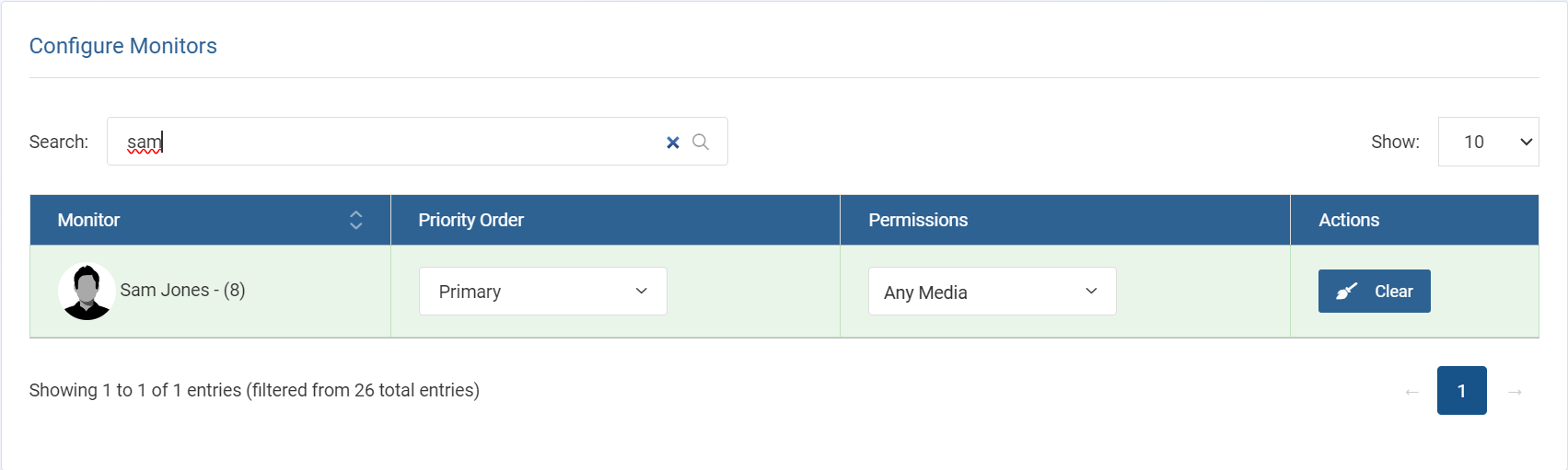
Once a monitor is added to the queue their name is highlighted in green.
-
-
After you have added all the monitors click Save.
The social media intercept is now available for the monitor on their Live Monitoring screen.