Analyzing common phone numbers between multiple phone users
This topic details how to use the Common numbers analysis to view the common phone numbers which all the target phone numbers have communicated with and then how to analyze calls with each of these numbers in more detail using the CDR data tab and the map. If your case contains social media data, you can also view the Common contacts analysis to identify other contacts.
NOTE: This analysis requires you to have selected a minimum of two target phone numbers in Sources.
-
In the Case management view ensure Call analyses is selected.
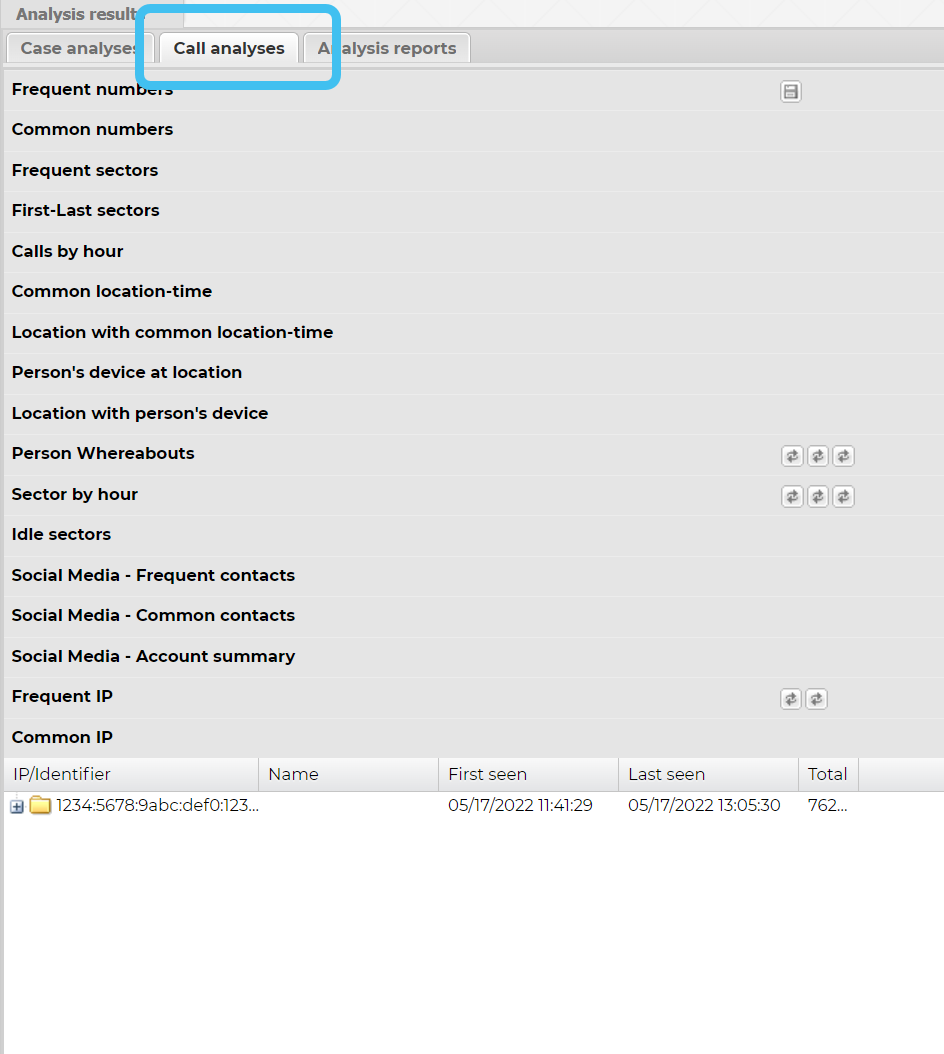
- Click Common numbers to expand the list. Note, a
 before the analysis name indicates that the analysis has been run. If
  is displayed, you must click it to run the analysis first.
 -
Click
 beside a common phone number to display the details of the individual target phone numbers. This allows you to view which of the target phone numbers you have selected were involved with calls to the common phone number. The ICW (in contact with) column allows you to quickly determine if an associate of your target is also an associate of other targets in your OSS-ESPA account. If they are then this column contains a colon-separated list of the other target names or phone numbers.
 NOTE: The ICW analysis is not run automatically. If you want to ensure the data in the ICW column is up to date then to view the last time the analysis was run, or to rerun it, open the case's People and devices screen, then in People click
 to open the Associate settings where the date and time of the last analysis is displayed. Click Run analysis if required.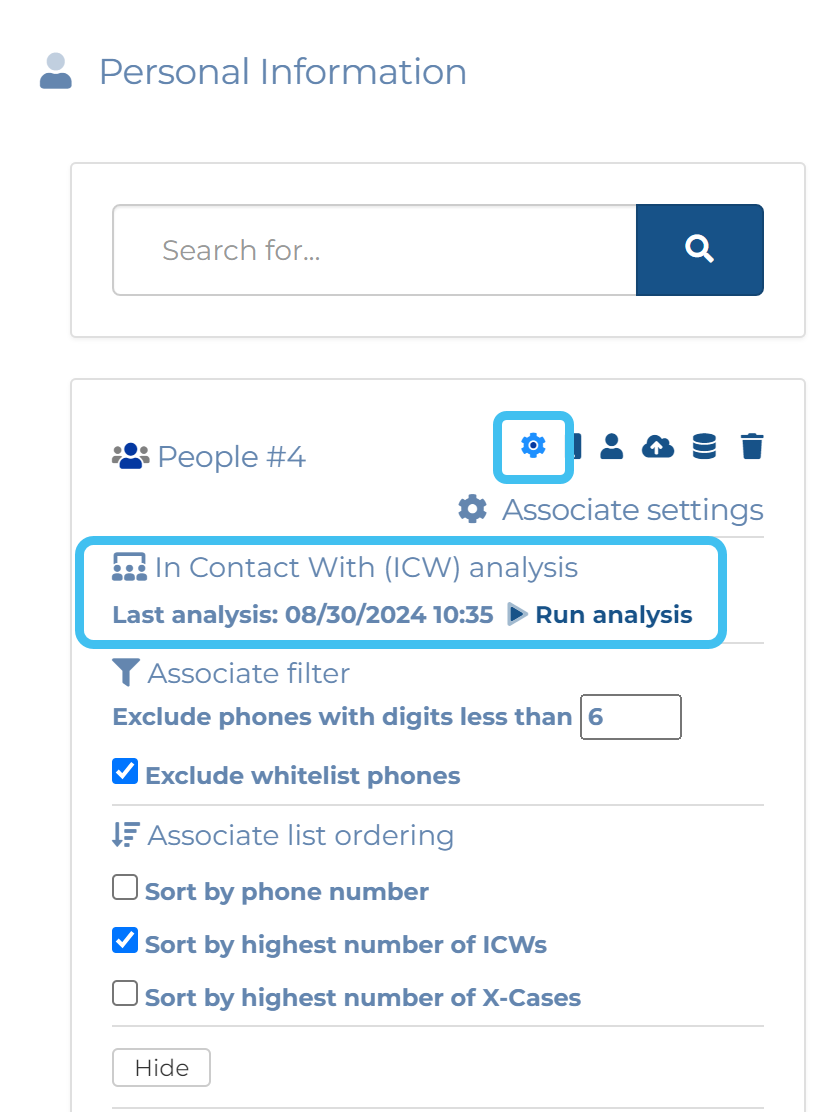

If you want to investigate these calls further continue with the following steps.
-
Optionally, if required you can change the number of results displayed from the default of ten by using the Advanced options dialog box. To do this, hover over
 on the top-right of the map, click
  and select Advanced options. On the Advanced options dialog box click the Analysis tab. You can either change Items to calculate from 10 or select Check all items to display them all. Using Associate settings you can also define what associate information is displayed in the analysis. You must click Refresh to update any changes on the Call analyses tab.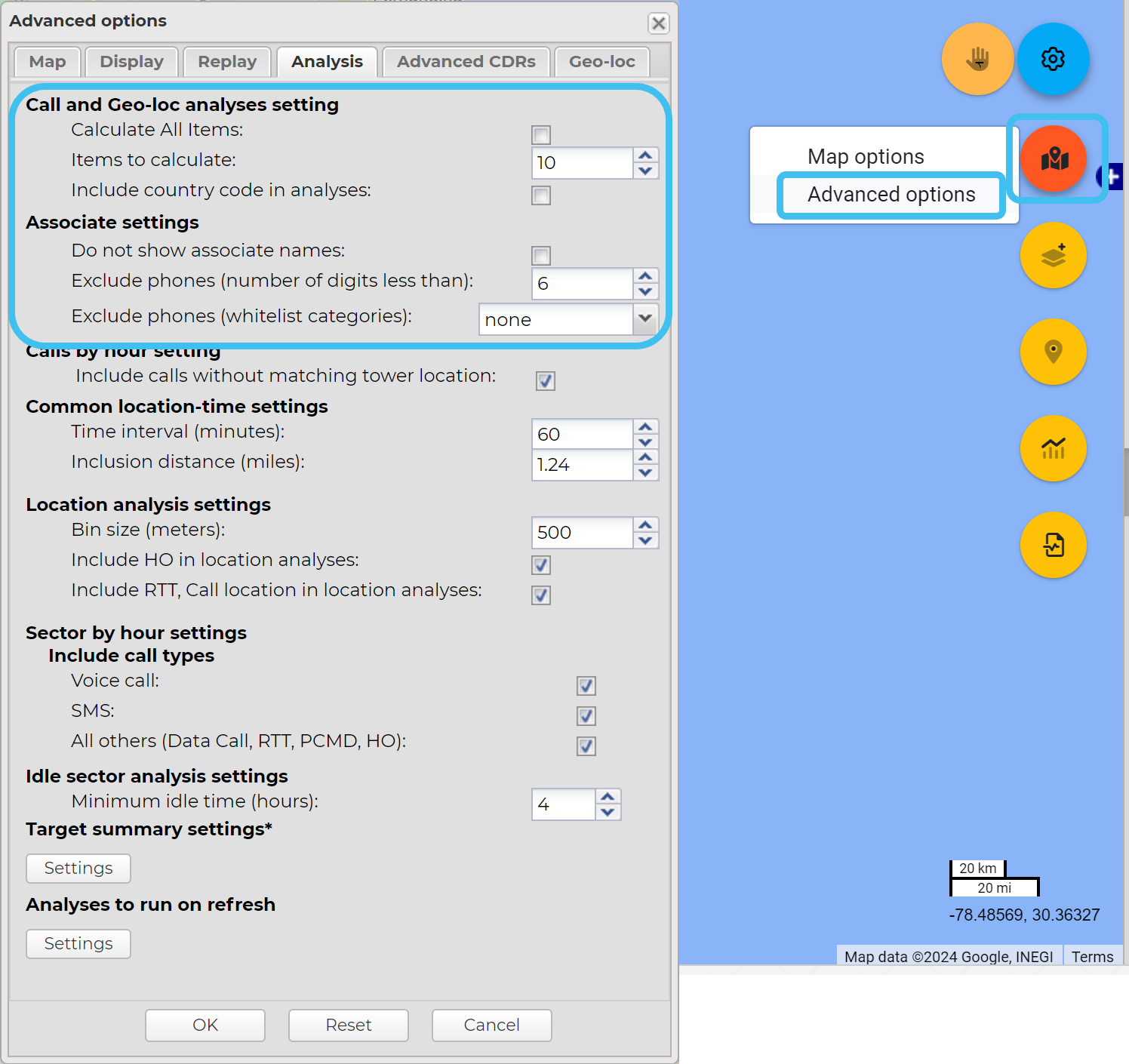
-
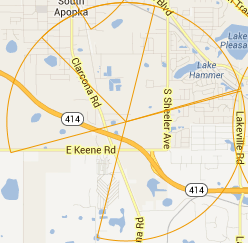
On the Data view's CDR data tab deselect (uncheck) the check box in the table title immediately next to the Zoom to column.
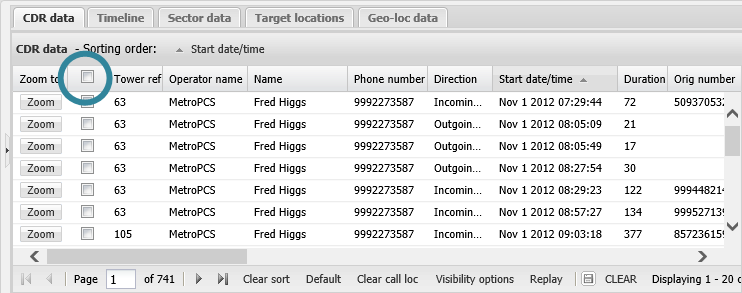
This deselects all the calls and all the sectors are displayed on the map as an outline with no transparency effect.
-
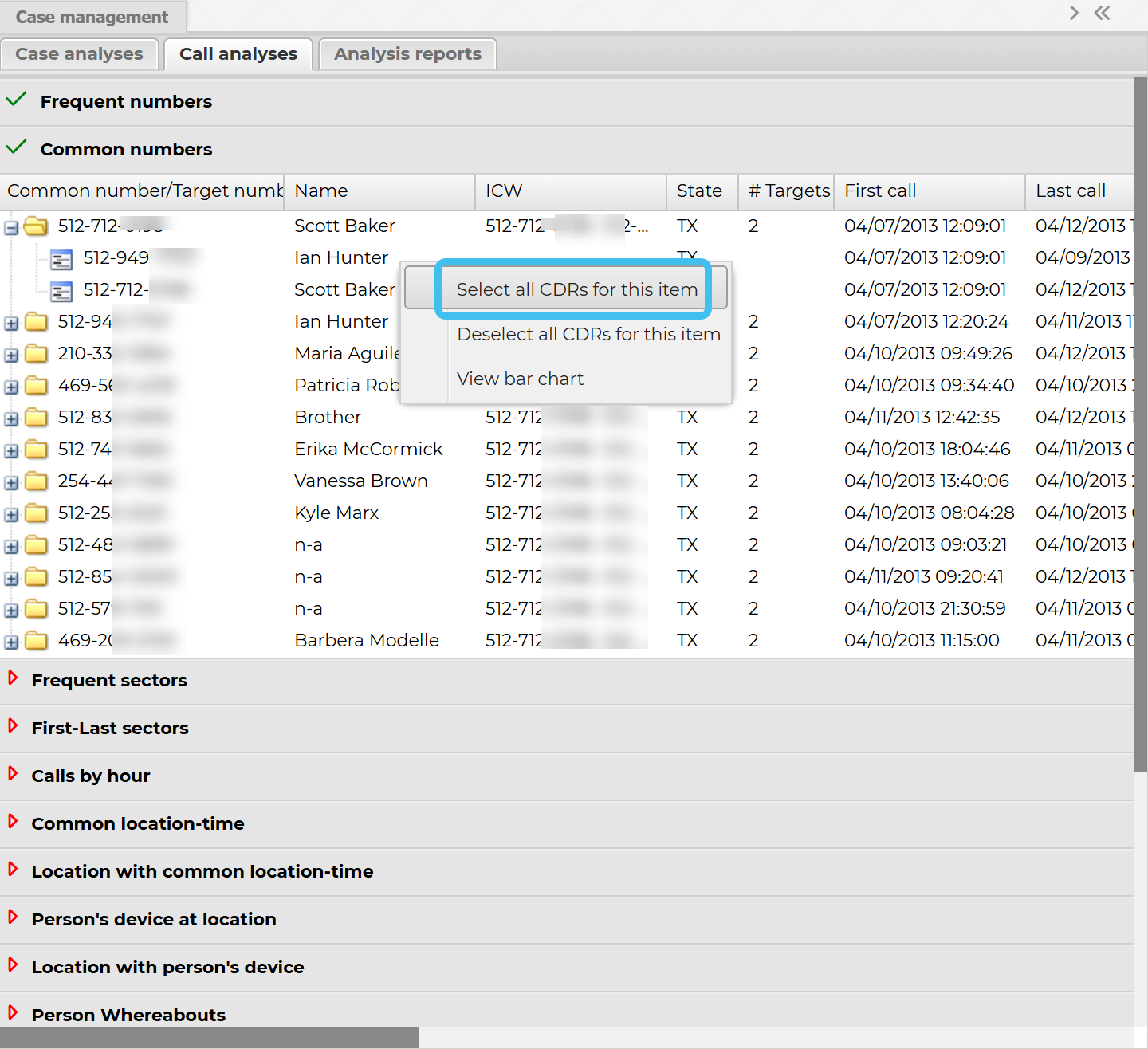
On the Call analyses tab right-click the common/target phone number combination you want to investigate further, then select Select all CDRs for this item. Note, if you require you can do this for more than one common/target phone number combination.
-
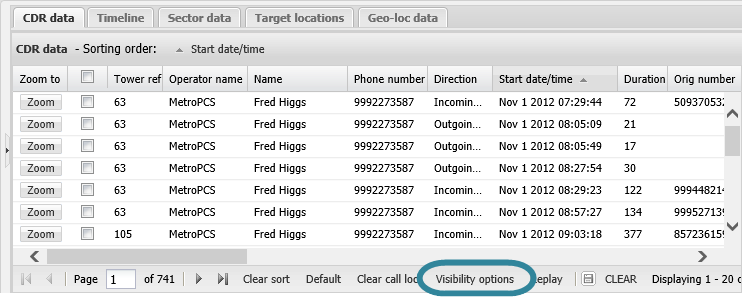
On the CDR data tab click Visibility options. The CDR active options dialog box opens.
-
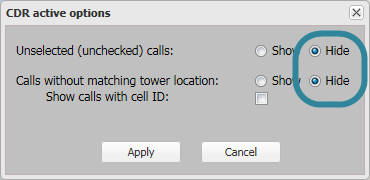
Ensure Unselected (unchecked) calls and Calls without matching tower location are set to Hide then click Apply.
-
You can now:
- Review the CDR data tab which only shows calls with the common/target phone number combination you selected.
- View the sectors on the map where only those involved with the common/target phone number combination you selected are shaded.
-
Search for the common phone numbers in a public record database to determine the phone users names and addresses. This then provides you with additional: interview leads, suspects or victims.
For further information refer to Call analyses tab.
If you want to add your analysis results to an advanced analysis report refer to Using call analysis results in advanced analysis reports.