Using the G-Scout App
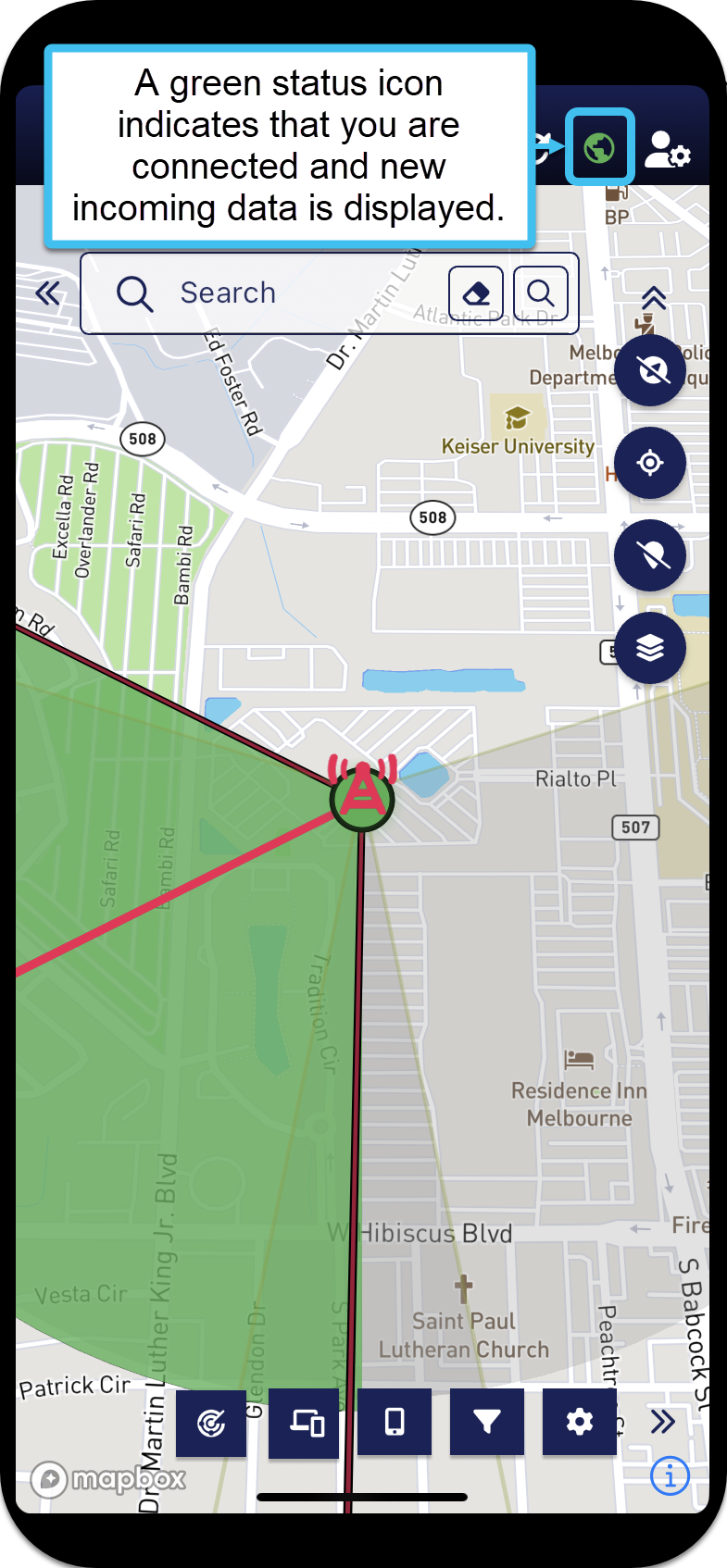
This section provides descriptions on how to use the G-Scout App. It explains how to log in, set your map preferences, and all the tasks you can perform with the G-Scout App, most of which are on the map screens. Tap the image at the start of each topic for a quick overview of the task.
Once you are logged in to the G-Scout App you can choose whether you want to view all the phones that you are monitoring, phones within a specific case, or if you are on a field mission you are likely interested in viewing the phones and the other units that are part of the mission.
If you want to track:
-
all the phones that you are monitoring, then you should open the Sentinel map screen from the Home screen by tapping Sentinel

This method provides you with up to 1 week of data for every phone you are monitoring, and you can view your own breadcrumb trail on the map.
-
phones on a per case basis, then you should open the Analysis Center map screen via Cases on the Home screen. The Cases screen opens allowing you to select the case of interest, view the details and events of each target in the case, and open the case on the Analysis Center map screen.
This method provides you with up to 6 months of data for each phone in the case, and you can view the field unit location and breadcrumb data for all the field units assigned to the case.
-
phones that are part of a mission, then you should open the Sentinel mission map screen via Missions on the Home screen.
This method provides OSS-ESPA users with up to 6 months of data for each phone in the mission, and you can view the field unit location and breadcrumb data for all the field units assigned to the mission. Note, guests are limited to the number of hours set by the mission creator and can only view the last location of each field unit.
For more details, refer to the individual topics.