Add/Edit mission panel
The Add mission and Edit mission panels allow you to add and edit a mission including: its name, when it expires, the amount of historical data displayed on the Sentinel mission map screen for guests, the units assigned, the associated case, and if the case includes Smart Track alerts then you can choose which ones to include.
For example, in the following graphic the mission is set for the maximum time period of 24 hours, and the Sentinel mission map screen displays the real-time data and the last 4 hours of historical data for guests. The amount of data displayed for OSS-ESPA users is dependent on their user preferences but they can view up to 6 months of data.
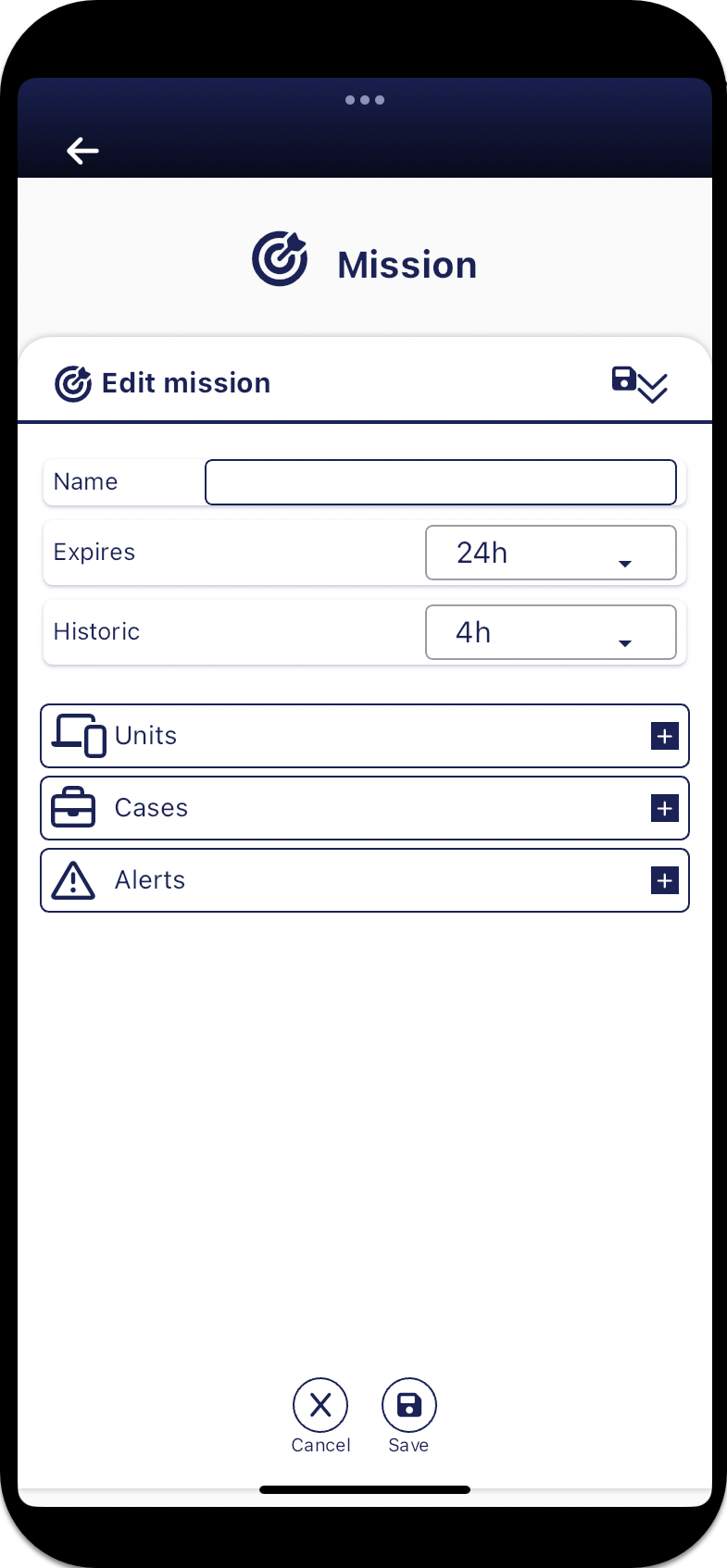
Note, all the settings on this screen can be edited after the mission has been created, including the expiry time.
If you require a step-by-step procedure on managing missions refer to Add and manage missions.
 Settings and buttons
Name
Settings and buttons
Name
Enter a name for your mission.
Expires
Select the length of time you want the mission to last before it expires. Once expired the mission can no longer be viewed on the Sentinel mission map screen. It does however display on the Mission screen's Completed missions tab where you can view the mission statistics and, if needed, reactivate the mission by adding more hours to this setting.
Historic
Select how much historical data is available for guests to view on the Sentinel mission map screen.
NOTE: This setting does not apply to OSS-ESPA users who can view up to 6 months of data for each phone.
Units
Select which units you want to add to the case. To help you locate a unit, you can use the filters to select the types of units you want displayed, and you can also use the search bar to locate a unit.
NOTE: OSS-ESPA users must be assigned to the mission, even if they are already assigned to the case in OSS-ESPA.
Cases
Select which case you want included in the mission. The target phones from the selected case are then available to view on the Sentinel mission map screen. Note, you do not have to select a case if the purpose of the mission is simply to view the unit locations.
Alerts
If the selected case has Smart Track alerts configured then you can select which alerts you want included in the mission. If a selected alert is triggered, for example if a target phone is detected in a location where a geo-fence alert is configured for then that alert appears on the Sentinel mission map screen.