Add and manage missions

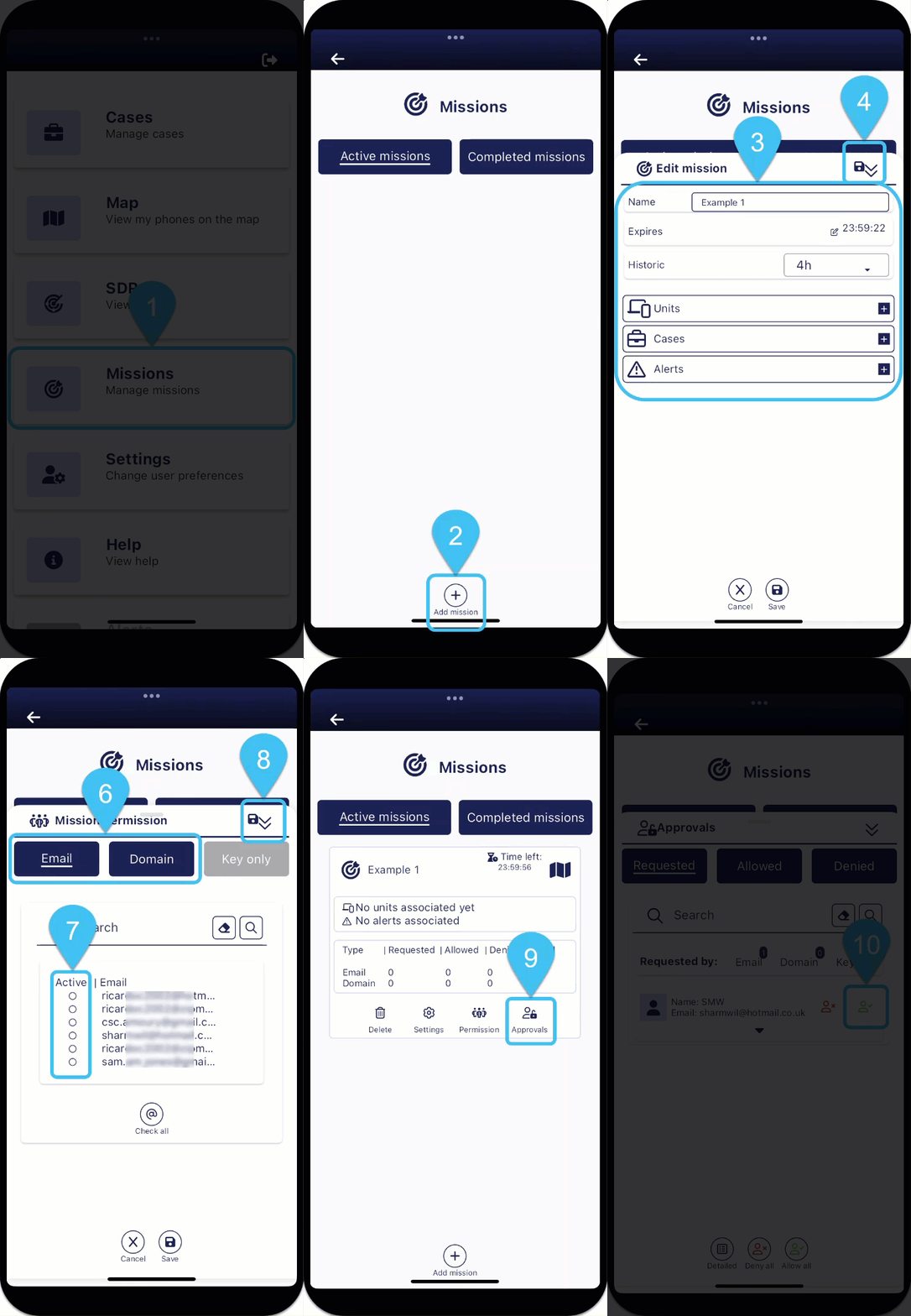
This topic describes how to add, edit and delete your missions, and how to include guest users who are not on your OSS-ESPA account.
-
On the Home screen tap Missions.
The Missions screen opens.
-
Tap
 .
.The Add mission panel opens.
-
In Name enter a name for your mission.
-
In Expires select how many hours the mission will last for.
-
In Historic select how much historical data is available for guests to view on the Sentinel mission map screen.
NOTE: This setting does not apply to OSS-ESPA users who can view up to 6 months of data for each phone.
-
In Units select which units you want included in the mission.
-
In Cases select which case you want included in the mission. The devices from the selected case are then available to view on the Sentinel mission map screen.
If you are only creating a mission to simply track your units, then it is not mandatory to select a case.
-
If the case you selected has Smart Track alerts then in Alerts, select which alerts you want included in the mission.
-
Tap Save.
The mission is now displayed on the Active missions tab of the Missions screen.
-
If you want to add a guest user to the mission:
-
Tap
 .
. The Mission permission panel opens.
-
You have the options to allow guest access by selecting an individual email and by selecting a domain. The emails and domains that are available to select on the Email and Domain tabs respectively have been configured on your OSS-ESPA account by your administrator. If the email or domain you want to include as a guest is not listed then contact your OSS-ESPA administrator. If you are an OSS-ESPA administrator and require further information on setting which emails and domains are available in the G-Scout App then search the OSS-ESPA Help for "Configuring access to missions on the G-Scout App".
Once selected tap Save.
Once the guest logs into the G-Scout App, using the code emailed to them, they can then request permission to view the mission.
-
Once a guest has requested permission to join the mission you must approve their request. On the mission tap
 .
. The Approvals panel opens.
-
On the Requested tab, tap
 . The guest can now access the mission.
-
-
Your mission is now created. If required, you can:
-
edit the mission settings by tapping
 This allows you to edit all the details you originally set for the mission, for example resetting the mission's expiry time and the units included in the mission. is available on both the Missions screen, and the Sentinel mission map screen by tapping
  to open the View mission panel.
 -
add or remove guest users using
and . and are available on both the Missions screen, and the Sentinel mission map screen by tapping to open the View mission panel. -
delete a mission by tapping
 on the Missions screen.
-