Create new social media monitoring queue screen and Editing queue (SM) screen
This topic provides an overview of the Create new social media monitoring queue screen and the Editing queue (SM) screen and all the settings and buttons on them. However if you require step-by-step procedures on using these screens, refer to How to create a monitoring queue for social media.
This feature requires option E19 Sentinel content log. If you do not have this option this feature is not available.
 Overview
The Create new monitoring queue and the Editing queue (SM) screens are used for configuring live monitoring specifically on social media accounts and allow you to:
- assign monitors to a social media intercept.
- define if the monitor is a primary or backup monitor. Typically you want to assign one of each to an intercept. If the primary monitor is available, the call is routed to them, but if not the call is routed to the backup monitor.

Both screens are opened from the Queue management screen:
-
the Create new social media monitoring queue screen is opened by clicking
 .
. -
the Editing queue (SM) screen is opened by clicking
 .
.
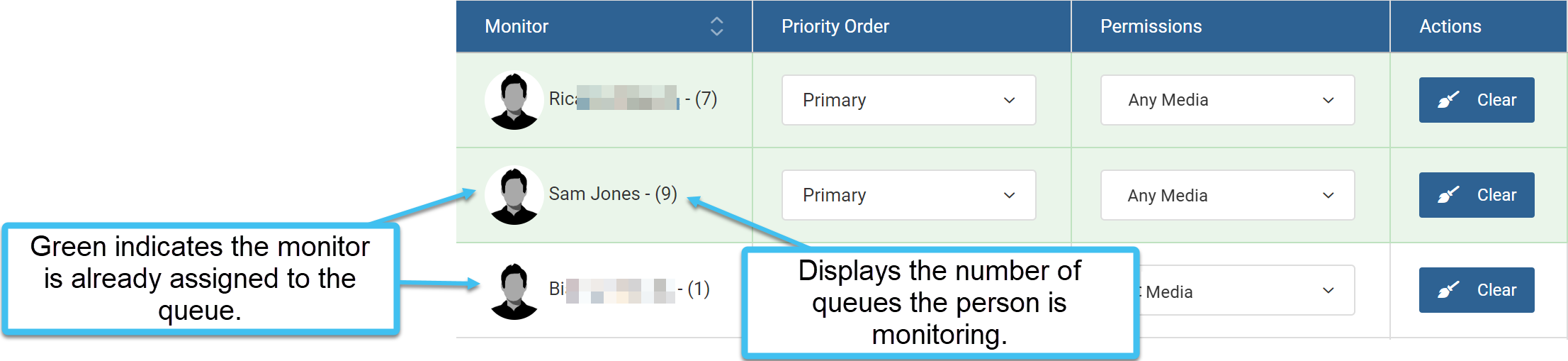
When a monitor is assigned to an intercept their row is displayed in green. The number after their name indicates how many queues they are monitoring.
Settings and buttons
Main Queue Configuration
Select a case
This setting is only applicable on the Create new social media monitoring queue screen.
For the case you want to configure the monitors for, enter all or part of the case name then select it from the menu.
Select an account
This setting is only applicable on the Create new social media monitoring queue screen.
From the menu, select the account you want to configure the monitors for.
NOTE: For the social media account to be available to select, you must select Enable intercept content for the account on the People and devices screen.
Comments
Enter a comment that is useful to you to help you identify the case. This comment is displayed on the Queue management screen.
Configure Monitors
Search
Use the search to locate the monitor that you want to assign. The names that are available to select are those who have been set up to monitor as a User or as a Station by your administrator.
Priority order
Select whether the monitor is a primary or backup monitor. Typically you want to assign one of each to an intercept. If the primary monitor is available, the call is routed to them, but if not the call is routed to the backup monitor.
Permissions
Currently the only available option to select is Any media.

Click to remove the selected monitor from receiving intercepts.
Exit
Click to close the screen without saving any changes and return to the Queue management screen.
Save
Click to save the updates you have made and return to the Queue management screen.