How to view GPS pings on the Sentinel screen
You can view live GPS pings on the Sentinel screen by selecting Real time on the Input and settings view. The Location events view's Action column allows you to quickly center a GPS ping of interest on the map. The Location events view also has a number of columns that provide useful GPS ping data.

This topic describes how to view a target's GPS pings on the Sentinel screen. To do this you must have already activated Smart Track on the target person as described in How to activate Smart Track on a target.
You can also click here for a short video showing how to view GPS pings on the Sentinel screen.
-
Check that you are receiving data by verifying that there is a live ping file listed in Case Files on the Case management screen.

-
If data is being received then you can view the live GPS pings on the Sentinel screen.
-
Click
 to open the Sentinel screen.
-
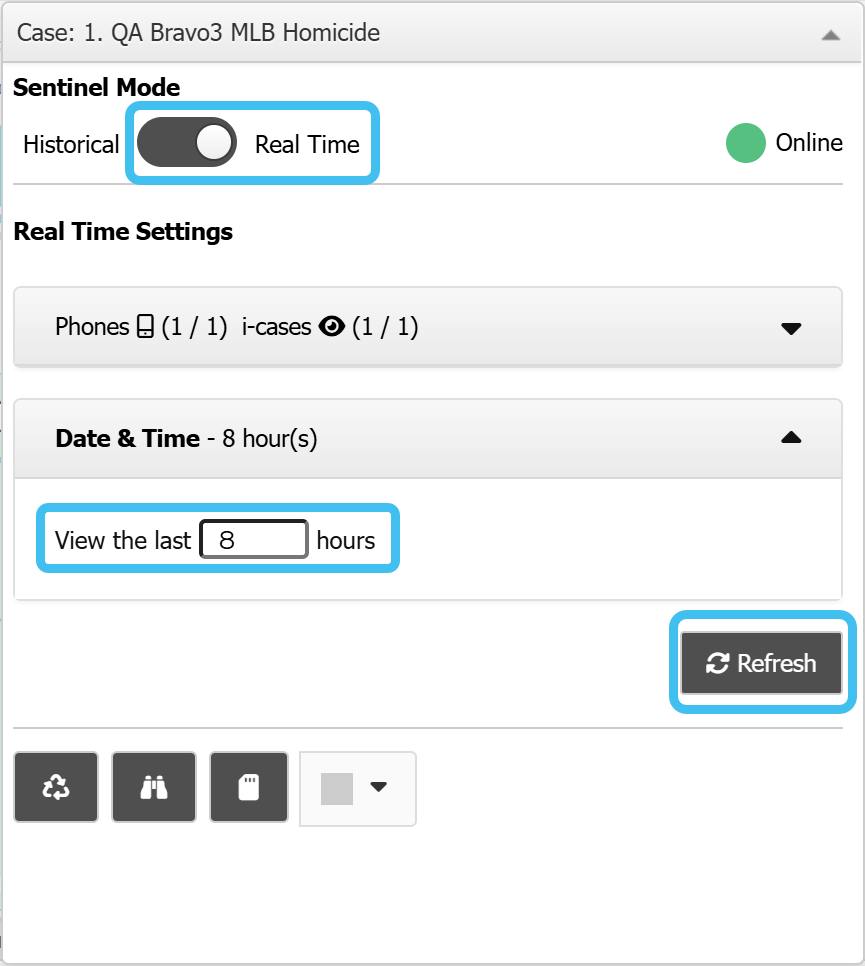
On the Input and settings view select Real time. This displays the last 2 hours of data, however if you want to view more data then in View the last x hours enter the number of hours you want to display then click Refresh to update the data displayed in the views.
-
Click the Location events view. Columns of particular interest are:
-
The Event type column lists the GPS pings that are being received.
-
The Original time column displays the date and time of the GPS ping, and the Age (min) column displays how old in minutes the GPS ping is.
-
Click the icon in the Actions column to center the location of the GPS ping on the map. The most recent GPS ping is displayed on the map with a spinning
 icon. Click on any GPS ping icon on the map to display the details and to view the accuracy radius and the location on Google maps.
-
You can clear the header check-box next to the Actions column to remove all the GPS pings from the map, then select only the check-boxes of those that you are interested in.
-
You can select the check-boxes in the column next to Buffer/TA Distance if you want to view the accuracy radius of the GPS ping's location.
-
To review the original email, click the Comm #, or right-click on any row then select Open message summary, to open the message summary view.

-
-