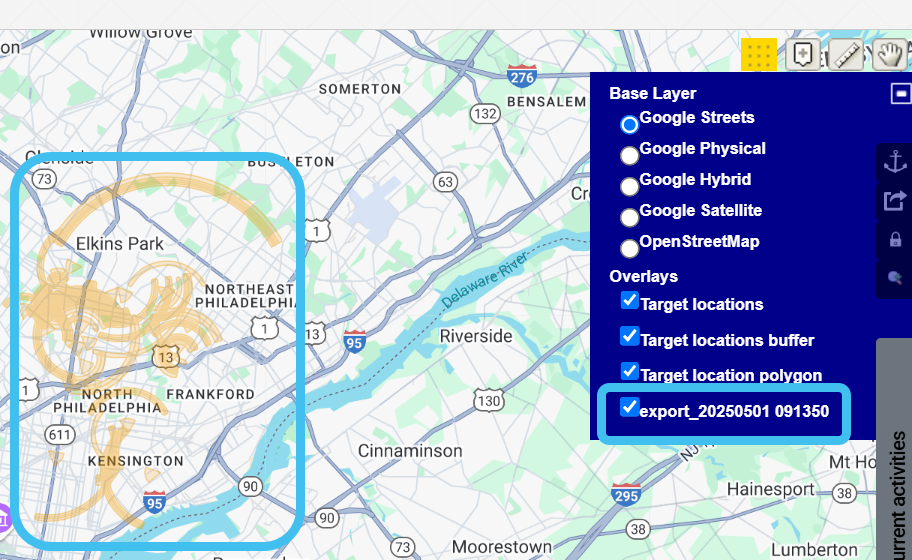
Exporting TA arcs from the ESPA analysis center to the Sentinel screen
You can export TA arcs from the ESPA analysis center by selecting the TA arcs of interest, left-clicking  , then clicking Export map to Sentinel. To import on the Sentinel screen click
  at the top-right of the map, then select Case data, select the export file then click OK.
This topic describes how to export timing advance arcs from the ESPA analysis center to the Sentinel screen.
You can also click here for a short video showing how to export the TA arcs to the Sentinel screen.
-
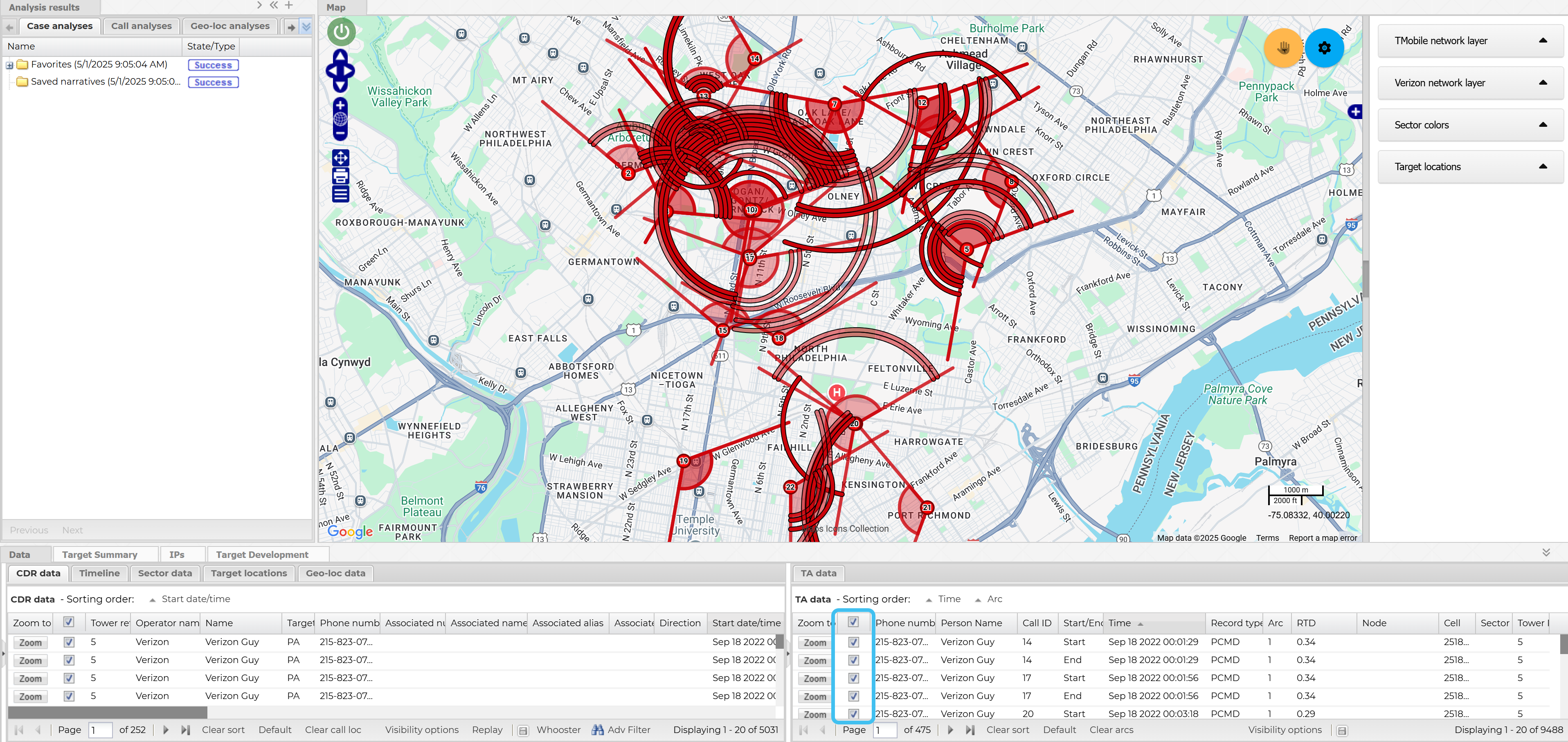
On the ESPA analysis center's TA data tab, use the check-boxes to select the TA arcs you want to export.
-
Left-click
, then click Export map to Sentinel. This exports the currently selected map layers to display on the Sentinel screen. 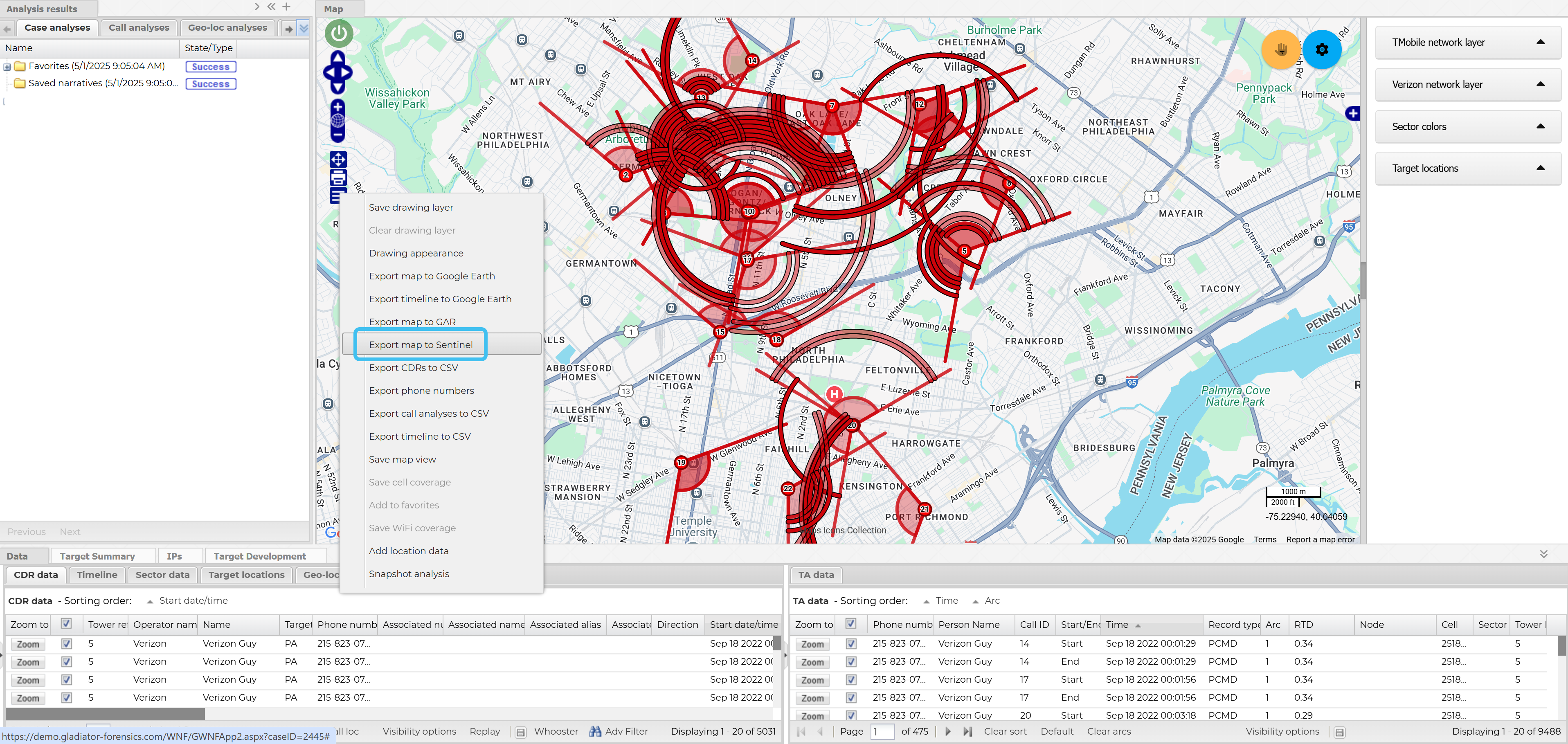
-
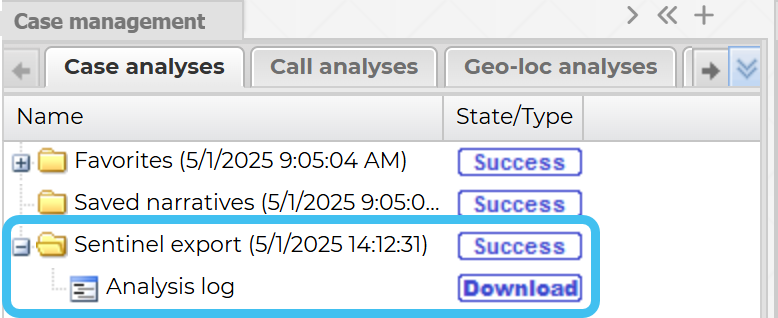
A Sentinel export folder immediately displays on the Case analysis tab of the Case management view. The map export is available for use when the state changes from Running to Success.
-
On the case's Case management screen, click
 to open the Sentinel screen.
-
On the Input and settings view select Real time.
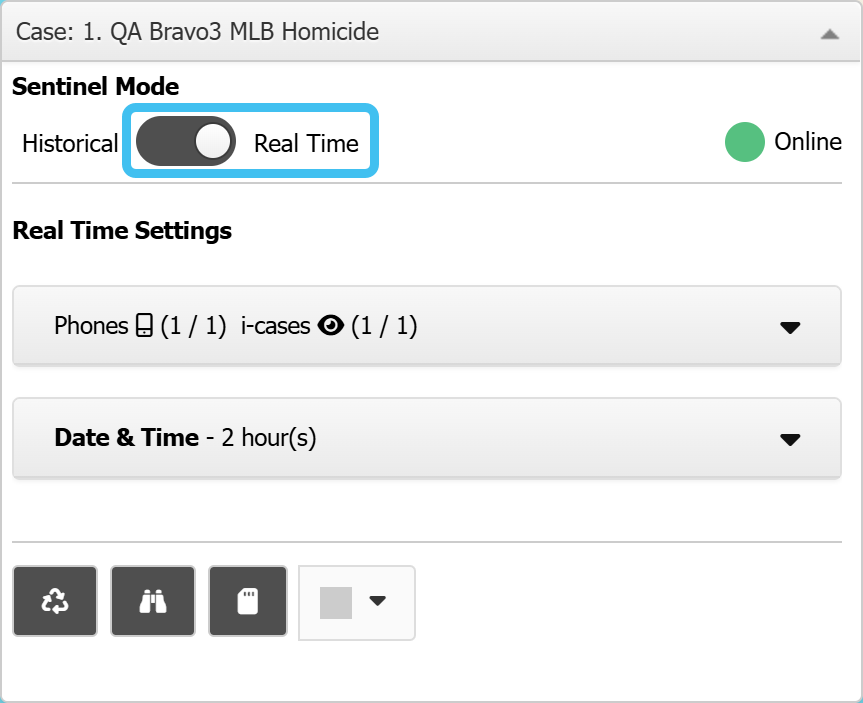
-
Click
at the top-right of the map, then select Case data. 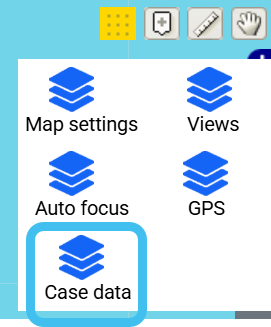
The Case data dialog box opens.
-
Select the required export then click OK. Note the exports are automatically named using the date and time of the export from the ESPA analysis center.
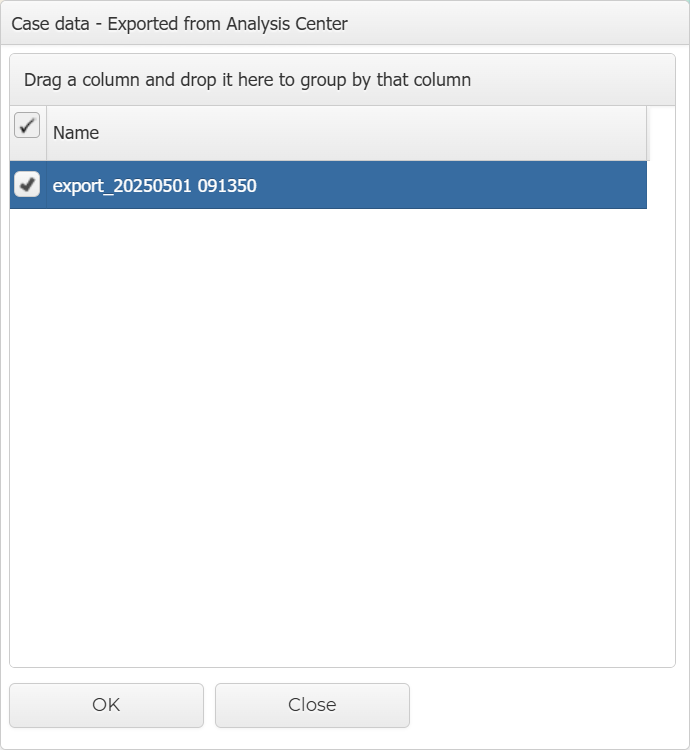
-
The exported map, including the TA arcs are now displayed on the map. You can use the map layers to show/hide the exported file.